Inviting Your First Team Member
Last updated: April 18, 2026
Wevion makes it straightforward to invite team members while keeping each person's data, ad accounts, and creative assets properly isolated.
Prerequisites
Before you can invite a team member, make sure the following are in place:
You have an Owner or Super Admin role. Only these roles can access Team Management and send invitations. If you are a media buyer on someone else's team, ask your team owner to send the invite.
Your subscription plan has available user slots. Each plan includes a set number of base users. If all slots are filled, inviting a new member will add an extra-user charge to your next billing cycle. See Team Member Limits by Plan below for details.
You have the new member's email address. The invitation is sent via email, and the recipient will use that same email to create their Wevion account.
How It Works
You send an invitation from Team Management, specifying email and role.
Wevion sends a registration link to the invitee.
The member registers and automatically appears in your team list.
Data isolation activates immediately -- they get their own workspace, connect their own Meta accounts, and see only their own data. The owner retains visibility across all members.
Step-by-Step Guide
Step 1: Go to Team Management
From the Settings, click Team (or navigate to Backoffice > Users). This opens the team dashboard, which displays all current members along with key performance stats such as spend, active campaigns, ROI, conversions, revenue, and profit.
If you do not see the Team option in the sidebar, your current role does not have permission to manage team members. Contact your team owner for access.
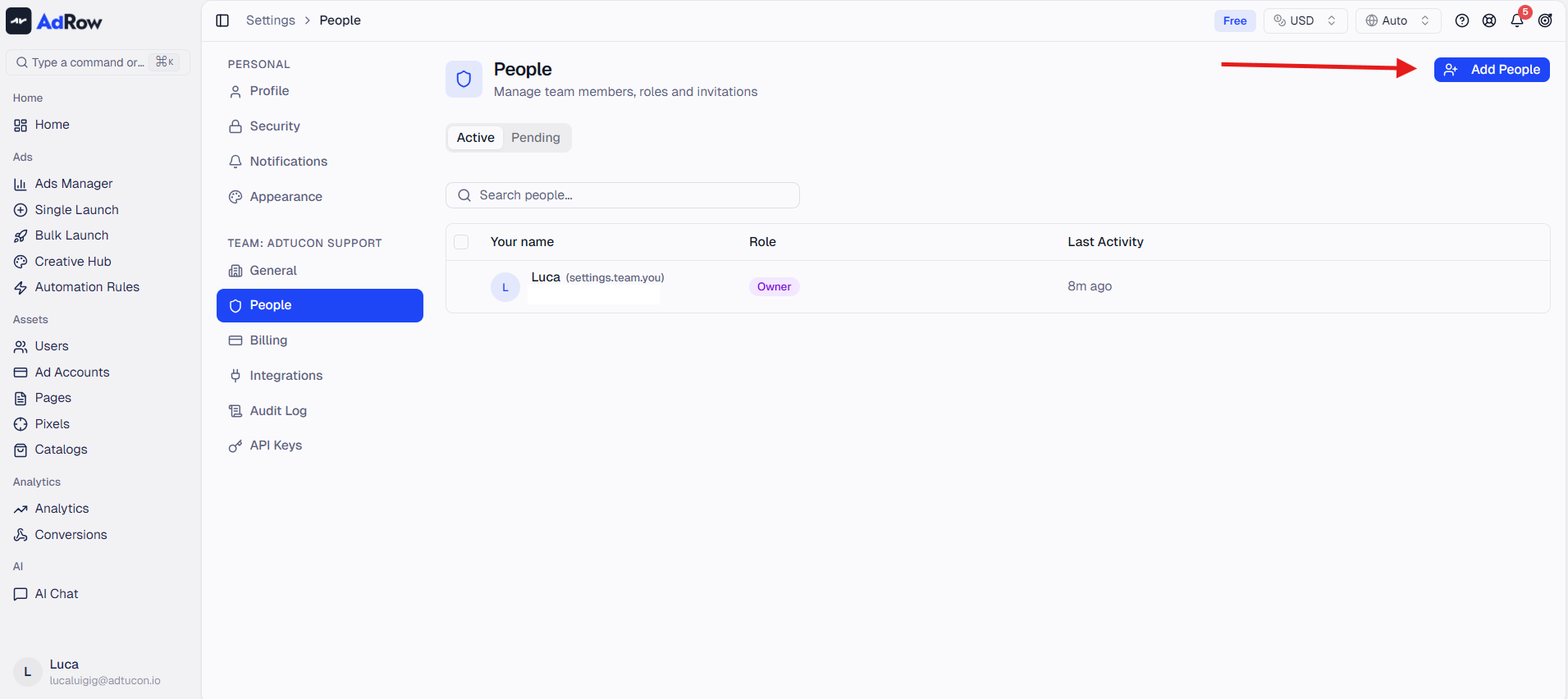
Step 2: Click Invite Member
In the top-right corner of the Team Management page, click the Invite Member button. This opens the invitation form.
Step 3: Enter Member Details
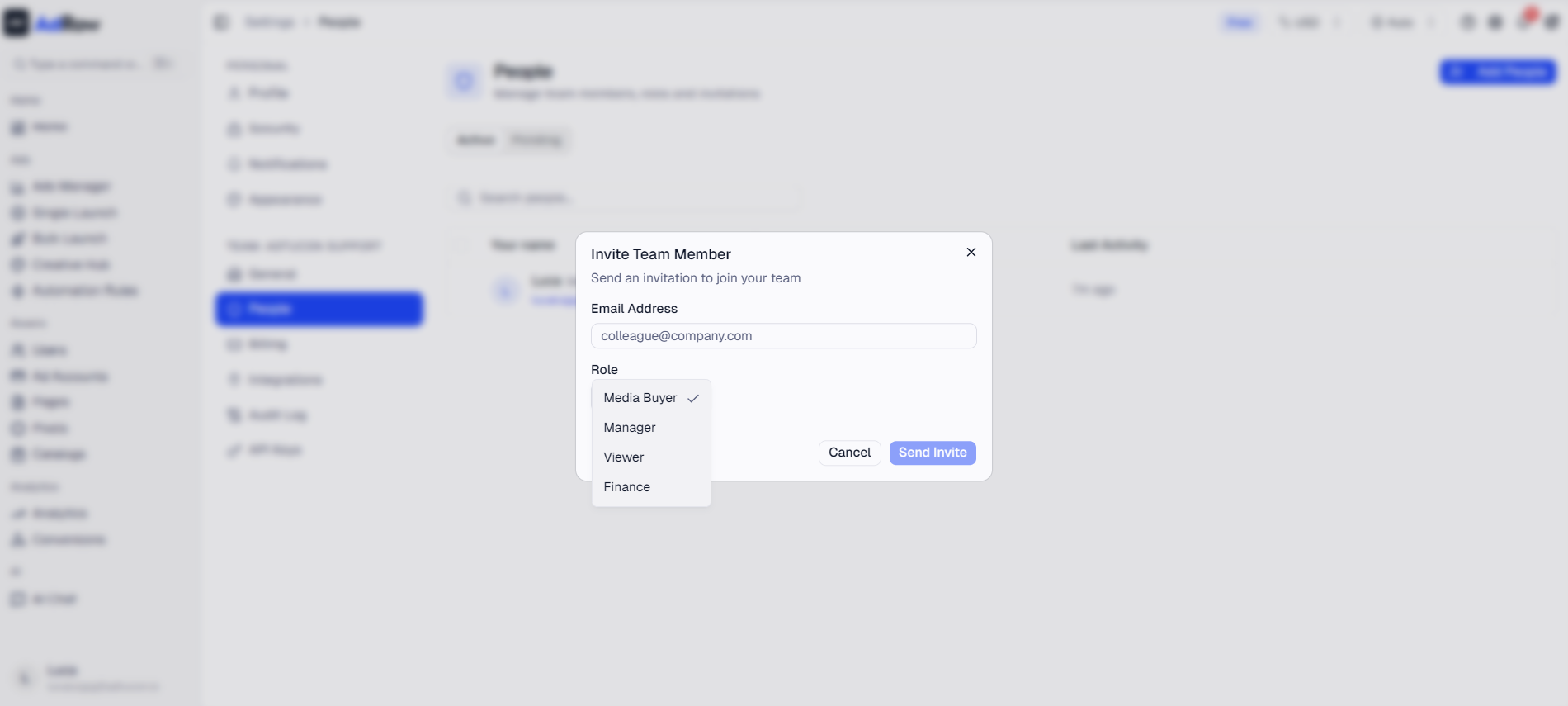
The invite form has two fields:
Email — The email address where the invitation will be sent. The member must use this exact email when registering.
Role — Select the role you want to assign. The available roles in the invite form are:
Media Buyer — The standard role for campaign operators. Media buyers can manage their own campaigns, ad accounts, and creative assets. They cannot see other team members' data or access team-wide settings.
Manager — Team-level read access with limited management capabilities. Can view team campaigns, rules, creatives, analytics, and audit logs.
Viewer — Read-only access to dashboards and analytics.
Finance — Financial data access with a read-only focus on dashboards, analytics, and reporting.
Note: The Admin and Owner roles cannot be assigned via the invite form. These roles must be configured separately by a platform administrator or through direct role assignment after the member has joined.
Once the fields are filled, click Send Invitation.
Wevion sends the registration link immediately. You will see a confirmation message, and the invited person will receive an email within a few minutes.
Tip: If the invitee does not receive the email, ask them to check their spam or promotions folder. The email is sent from noreply@wevion.ai and may be filtered by some email providers.
Step 4: Member Accepts Invitation
The invitee clicks the registration link in their email, which takes them to a secure signup page. They create a password and complete account setup. No credit card or separate subscription is required from the invitee — their access is covered under your team plan.
Once registration is complete, the new member appears in your Team Management list with an Active status. They can immediately log in and begin setting up their workspace.
Step 5: Assign Roles and Permissions
After the member appears in your team list, review their assigned role to confirm it matches your intention. If you need to change the role, you can do so directly from the Team Management page by clicking on the member's entry and updating their role.
The new member should now:
Connect their Meta account — Each team member connects their own Meta Business account to access their ad accounts. Connecting Your Meta (Facebook) Account
Select their ad accounts — After connecting Meta, the member selects which ad accounts they want to manage through Wevion.
Explore their Creative Hub — Each member gets a dedicated Creative Hub folder for organizing ad creatives independently.
Team Member Limits by Plan
Each Wevion subscription plan includes a base number of team members at no additional cost. Adding members beyond the base allocation incurs a per-user monthly charge.
PlanIncluded UsersExtra User Cost | ||
Starter | 2 | $19/month each |
Pro | 5 | $15/month each |
Agency | 15 | $12/month each |
For example, if you are on the Pro plan and already have 5 active members, inviting a sixth member adds $15/month to your subscription. The charge is prorated from the date the member registers.
If you need to add a large number of users, consider upgrading your plan first. Moving from Starter to Pro gives you 3 additional base slots and reduces the per-user overage cost from $19 to $15.
Managing Team Members
As an owner, you see each member's name, email, role, status, last login, and performance stats (spend, campaigns, ROI, conversions, revenue, profit).
Deactivating a member: Click on a member and toggle to Inactive. They cannot log in but historical data is preserved. Reactivate later if needed.
Important: Deactivating does not disconnect their Meta ad accounts. To change ownership, the new member must connect their own Meta account.
Media buyers see only their own data. Owners see everything across all members.
Frequently Asked Questions
Can I invite someone who already has an Wevion account? Yes. If someone already has an Wevion account, they can join your team using the invitation link. Their existing account will be linked to your team without needing a new registration.
What happens if I exceed my plan's user limit? You can still send the invitation. Wevion will add the extra-user charge to your subscription automatically. You will see the additional cost reflected in your next invoice.
Can a team member connect multiple Meta ad accounts? Yes. Each member can connect their own Meta Business account and select multiple ad accounts under it. There is no separate limit on ad accounts per member beyond your plan's overall resource quotas. Understanding Your Ad Accounts
Can I change a member's role after they join? Yes. From the Team Management page, select the member and update their role. The change takes effect immediately.
What role should I assign to most team members? For the majority of media buyers on your team, the Media Buyer role is appropriate. It gives them full control over their own campaigns and ad accounts without exposing other members' data. Use Manager for team leads who need visibility without edit access, Finance for financial oversight, and Viewer for stakeholders who only need read access. The Admin and Owner roles cannot be assigned through the invite form and are reserved for people who need full team-wide management access.
Does deactivating a member free up a user slot? Deactivated members do not count toward your plan's active user limit, so the slot becomes available for a new invitation.