Understanding Your Ad Accounts
Last updated: April 18, 2026
After connecting your Meta account to Wevion, every ad account you have access to in Business Manager is imported automatically. The Ad Accounts page is your central hub for viewing, organizing, and managing all of those accounts.
Prerequisites
An Wevion account with an active subscription (or active free trial).
At least one Meta account connected to Wevion. If you have not done this yet, see Connecting Your Meta (Facebook) Account.
Your Meta accounts must have at least one ad account inside Business Manager.
How It Works
Wevion pulls your ad account data from Meta in two stages:
Initial sync — When you first connect, Wevion imports all ad accounts (name, ID, business, currency, timezone, ownership type). Available immediately.
Extended sync — Wevion periodically collects financial details (spend, spend cap, balance, payment method, live status). Refreshes every ~15 minutes, or trigger a manual refresh anytime.
Viewing Your Ad Accounts
Navigate to the Ad Accounts page using the left sidebar. You will see a table listing every ad account imported from your connected Meta account(s).
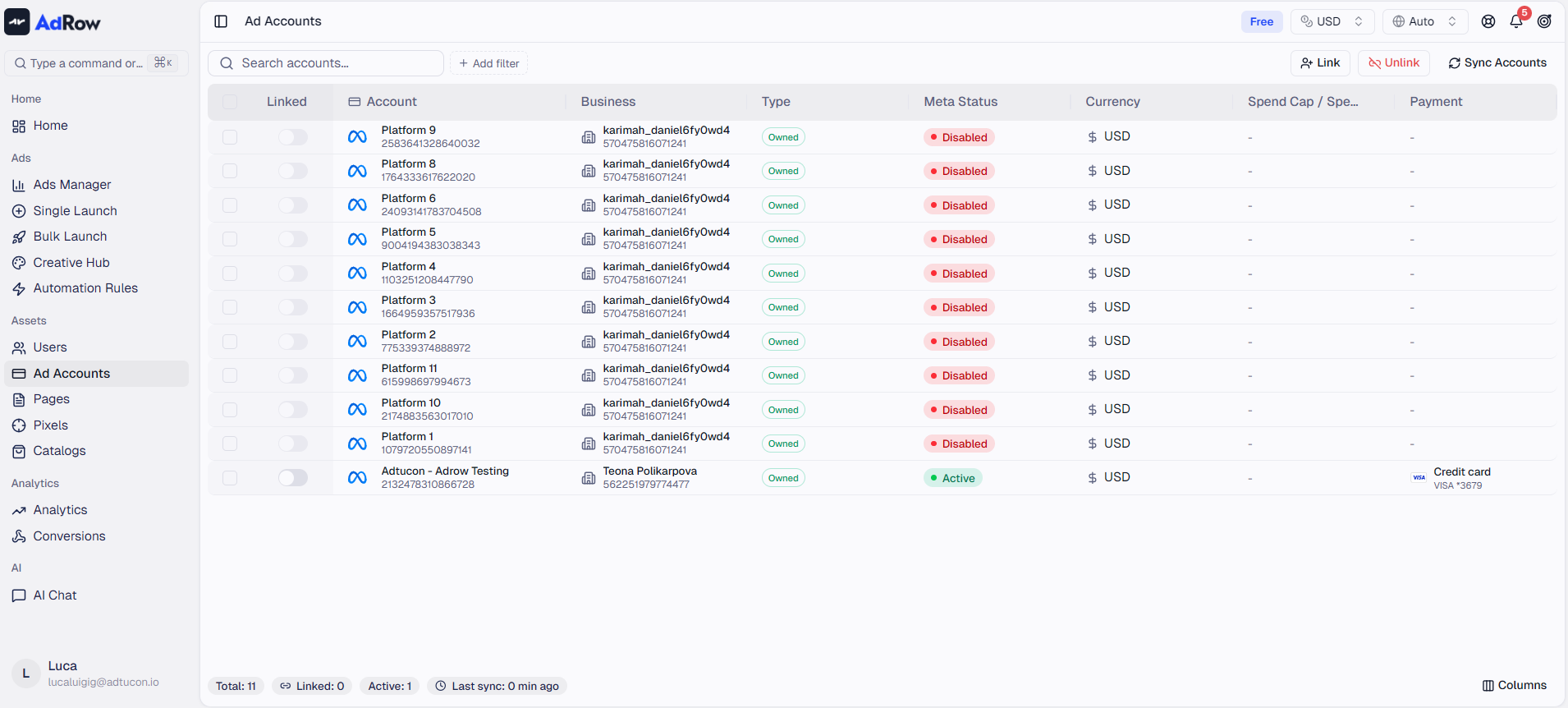
Account List
ColumnWhat It Shows | |
Account | Ad account name and numeric Meta ID |
Business | Business Manager name and ID |
Type | Owned or Client (managed on behalf of another business) |
Connection | Whether the account is connected and actively syncing |
Status | Meta-side status (Active, Disabled, In Review, etc.) |
Currency | Currency configured for the account |
Spend / Cap | Amount spent vs. spend cap, with progress bar |
Payment | Payment method on file (card, invoicing, PayPal, direct debit) |
Linked | Date when first connected to Wevion |
The Spend / Cap column shows a color-coded progress bar when a cap exists: blue (healthy), amber (>70%), red (>90%). The Payment column shows card brand, invoicing, PayPal, direct debit, or Facebook Wallet/Credits.
Account Status
StatusWhat It Means | |
Active | Fully operational — you can create and run ads. |
Disabled | Disabled by Meta (policy violation, unpaid balance). Resolve in Meta Business Manager. |
Unconfigured | Setup incomplete on Meta's side (missing payment or ToS). |
In Review | Meta is reviewing the account (typically 24-48 hours). |
Pending | Waiting for Meta approval or activation. |
Grace Period | Flagged with a short window to fix before disabling. |
Closing / Closed | Being permanently closed or already closed. |
Note: Wevion can only manage Active accounts. Other statuses are visible but cannot be assigned or used for campaigns.
Filtering and Searching
Search bar — Type at least 2 characters to search by account name, ID, or business name.
Filter panel — Click the filter icon for filters: Connection (All/Connected/Disconnected/Error), Status (All/Active/Disabled), Type (All/Owned/Client), Business, Currency, and Connected At (date range).
Sorting — Click any sortable column header to sort ascending or descending.
Connected vs Disconnected Accounts
Connected (green) — Actively linked, syncing data, available for campaigns.
Disconnected (gray) — Not actively syncing. Happens when unassigned, token expired, or account removed from Business Manager.
Error (red) — Disconnected and has a non-active Meta status (disabled, closed, etc.).
To connect new accounts, click Connect to open the Meta authorization dialog. To assign imported but unconnected accounts, select them and click Assign (only Active accounts can be assigned). To disconnect, select and click Unassign.
Account Limits by Plan
PlanMax Connected Ad Accounts | |
Starter | 5 |
Pro | 25 |
Agency | Unlimited |
When you exceed your limit, Wevion blocks the action. Either disconnect an existing account or upgrade your plan. Plans and Pricing — Choosing the Right Plan
If you downgrade, the system will block the downgrade until you manually remove excess accounts.
Team View (For Owners)
Owners see additional columns: Member (team member name/email) and Team (team name, for super admins). Owners can filter by team member and use Assign All to bulk-assign every eligible account across all members (non-active accounts are automatically skipped).
Syncing and Data Freshness
Automatic sync — Financial data refreshes approximately every 15 minutes.
Manual sync — Click Sync Accounts for an immediate full sync.
Last sync timestamp — Shown in the table footer.
Note: Basic account info (name, ID, currency) syncs immediately during connection. Periodic sync covers frequently-changing financial data.
Frequently Asked Questions
Why does my account show a dash for spend/balance/payment? Extended data has not been collected yet. Visit the page and wait a few seconds, or click the sync badge to force a refresh.
Why is my account showing as "Error"? The account is disconnected and has a non-active Meta status. Resolve the issue in Meta Business Manager, then reconnect in Wevion.
I do not see all my ad accounts. Why? Wevion imports only accounts from authorized Business Managers. Click Connect to authorize additional ones.
Can I rename an ad account from Wevion? No. Names are managed in Meta Business Manager and reflected in Wevion after sync.
How do I check my plan's ad account limit? Check Billing in the sidebar or the summary badges in the Ad Accounts page footer.
What happens if my Meta token expires? Accounts become disconnected. Re-authorize by clicking Connect and completing the Meta login flow.