Navigating the Platform — Interface Overview
Last updated: April 18, 2026
This article walks you through every part of the Wevion interface so you can navigate confidently from your first login.
Prerequisites
An active Wevion account with at least one Meta Business Manager connected Connecting Your Meta (Facebook) Account
Desktop or laptop browser (Chrome, Firefox, Edge, or Safari)
Your team role assigned by your team owner
The Sidebar
The sidebar is your primary navigation hub on the left side of the screen.
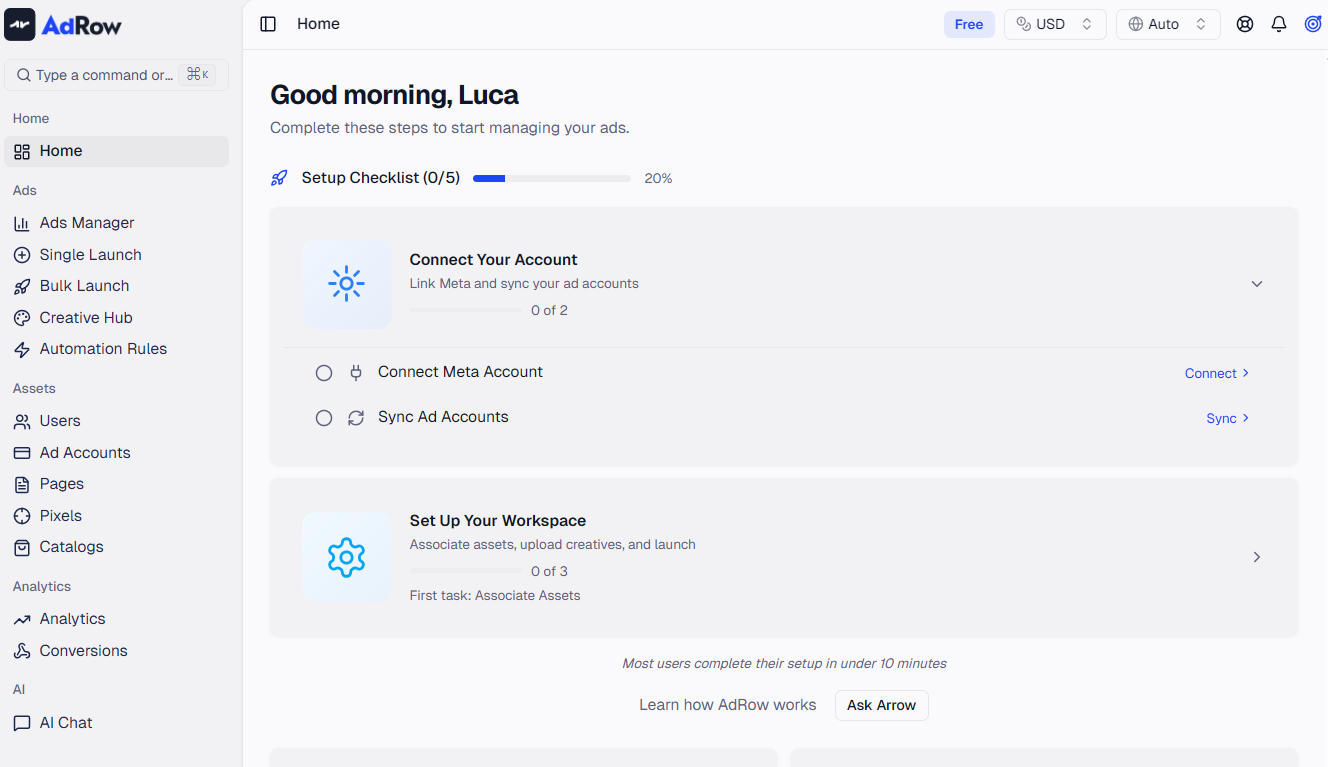
GroupContents | |
Home | Dashboard, Onboarding checklist (new users only) |
Ads | Campaigns, Launch Grid, Audiences |
Assets | Ad Accounts, Pages, Pixels, Catalogs |
Analytics | Insights, Rules |
AI | AI Chat |
Admin | Logs (restricted to Super Admin only) |
At the bottom, the user menu shows your avatar, name, and email. Click it for Settings, Billing, Support, theme toggle, language selector, and logout.
Collapsing: Press [ or Cmd+B / Ctrl+B to collapse to icon-only mode. Wevion preloads pages on hover for instant navigation.
The Top Bar
The top bar sits at the top of every page with contextual tools and global controls.

Sidebar toggle — Expand or collapse the sidebar.
Breadcrumbs — Clickable trail showing your current location (e.g., Ads Manager > Campaign > Ad Sets).
Contextual Help — Surfaces relevant knowledge base articles for the current page.
Search (Command Palette) — Open with
Cmd+K/Ctrl+Kor the magnifying glass icon.Currency selector — All monetary values update in real time.
Timezone selector — Controls date and time display.
Notifications bell — Unread count badge; click to preview recent notifications.
Key Sections
Dashboard
Your landing page after login, adapting to your role: new users see a setup checklist, media buyers see KPI cards and trend charts, owners see team-wide aggregated metrics.
Ads Manager
Monitor and manage campaigns with three drill-down levels: Campaigns > Ad Sets > Ads. Each level supports sorting, filtering, search, date range selection, and CSV export.
Ads Manager Overview — Your Campaign Control Center
Campaign Launcher
Create and publish Meta campaigns using a spreadsheet-style bulk interface, or use the Campaign Creator step-by-step wizard.
Launching Your First Campaign — Step by Step
Rules
Automate campaign management based on performance conditions (e.g., pause when CPA exceeds a threshold). Rules run on a schedule with full execution history.
Introduction to Rules — Automate Your Ad Management
Creative Hub
Your media library powered by Google Drive. Browse, upload, organize creatives, rename in bulk, and generate AI-powered video ads, avatars, and voice-overs.
Creative Hub Overview — Your Media Library
Assets
All Meta Business Manager resources synced into Wevion: Meta Users, Ad Accounts, Fan Pages, Pixels, and Catalogs. Each has its own page with list view, search, and filters.
Understanding Your Ad Accounts
Analytics
Customizable widget-based dashboard for deeper performance analysis with KPI cards, campaign rankings, and more.
Dashboard Overview — Your Daily Command Center
Settings and Billing
Accessible from the user menu or Command Palette:
Personal Settings — Profile, Security (password, 2FA), Notifications, Appearance (theme).
Team Settings (owners/admins only) — General, Members, Billing, Integrations, API Keys.
Role-Based Navigation
Seven roles control what you see and do:
RoleWhat they see | |
Super Admin | Everything, including admin logs and impersonation |
Admin | Full platform access, team settings, audit log |
Owner | Full access including billing, integrations, team management |
Manager | Campaigns, rules, creatives, analytics, audit log |
Media Buyer | Campaigns, rules, creatives, analytics, conversions |
Finance | Dashboard, analytics, and reporting (read-only) |
Viewer | Dashboard and analytics only (read-only) |
Sidebar items that do not apply to your role are hidden entirely. Roles and Permissions — Who Can Do What
Mobile Navigation
Wevion is desktop-first. On screens smaller than 768px, a full-screen overlay recommends switching to desktop. On tablets, the sidebar auto-collapses to icon-only mode.
Keyboard Shortcuts and Tips
The Command Palette (Cmd+K / Ctrl+K) is the fastest way to navigate, run actions, and switch contexts.
Navigation shortcuts (press G, then the second key)
ShortcutDestination | |
| Dashboard |
| Campaigns (Ads Manager) |
| Ad Sets (Ads Manager) |
| Analytics |
| Ad Accounts |
| Campaign Launcher |
| Campaign Creator (new campaign) |
| Creative Hub |
| Rules |
| Settings |
Action shortcuts (press N, then the second key)
ShortcutAction | |
| New Campaign |
| New Rule |
| Upload Creative |
| Generate AI Video |
| Generate AI Avatar |
| Generate AI Voice |
Utility shortcuts
ShortcutAction | |
| Open Command Palette |
| Toggle sidebar collapsed/expanded |
| Refresh all data on the current page |
| Show keyboard shortcuts cheat sheet |
Use / to filter navigation commands only, or > for quick actions only. The palette shows recently used commands at the top.
Frequently Asked Questions
I cannot see certain sidebar items that my colleague can see. Your visibility depends on your assigned role. Ask your team owner to verify your role. Roles and Permissions — Who Can Do What
How do I switch between light and dark mode? Click your user avatar at the bottom of the sidebar and select the theme toggle, or search "toggle theme" in the Command Palette.
How do I change the interface language? Click your user avatar, hover over Language, and select from 19 available languages.
Can I use Wevion on my phone? Wevion is optimized for desktop screens (768px and above).
How do I get help? Click the question-mark icon in the top bar, or access the Support Center from the user menu. Contacting Support
Where do I find notification history? Click the bell icon in the top bar, then "View all" for complete history. Notification Center — Staying Informed