Understanding the Dashboard
Last updated: April 18, 2026
The Dashboard is the first thing you see when you log into Wevion. It gives you a consolidated view of your Meta Ads performance across all connected ad accounts — spend, revenue, profit, ROI, and campaign status — all in one place.
Prerequisites
At least one Meta ad account connected and synced in Wevion. Creating Your Account and Starting the Free Trial
An active Wevion subscription.
At least one insight report generated (Wevion syncs your performance data automatically, but the Dashboard will be empty until the first sync completes).
How It Works
Wevion collects performance data on a regular cycle and aggregates it into cards, charts, and tables. All numbers reflect your selected date range and update when you change filters.
Data freshness — A "Last updated" timestamp shows when the most recent sync completed. Use the refresh button for manual updates.
Multi-account aggregation — Multiple ad accounts roll up into a single set of totals.
Role-based visibility — Media buyers see their own data; owners see team-wide data with member filtering.
Dashboard Components
Performance Cards (Primary Row)
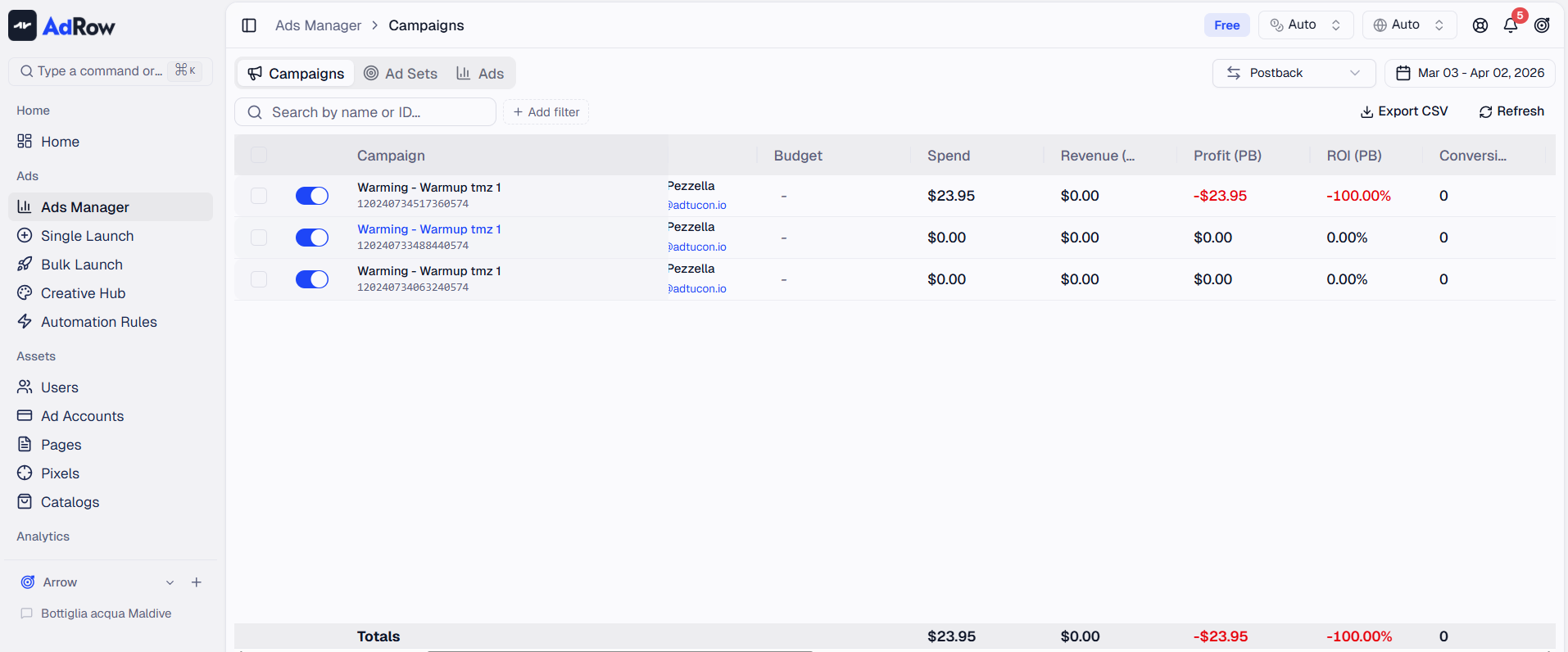
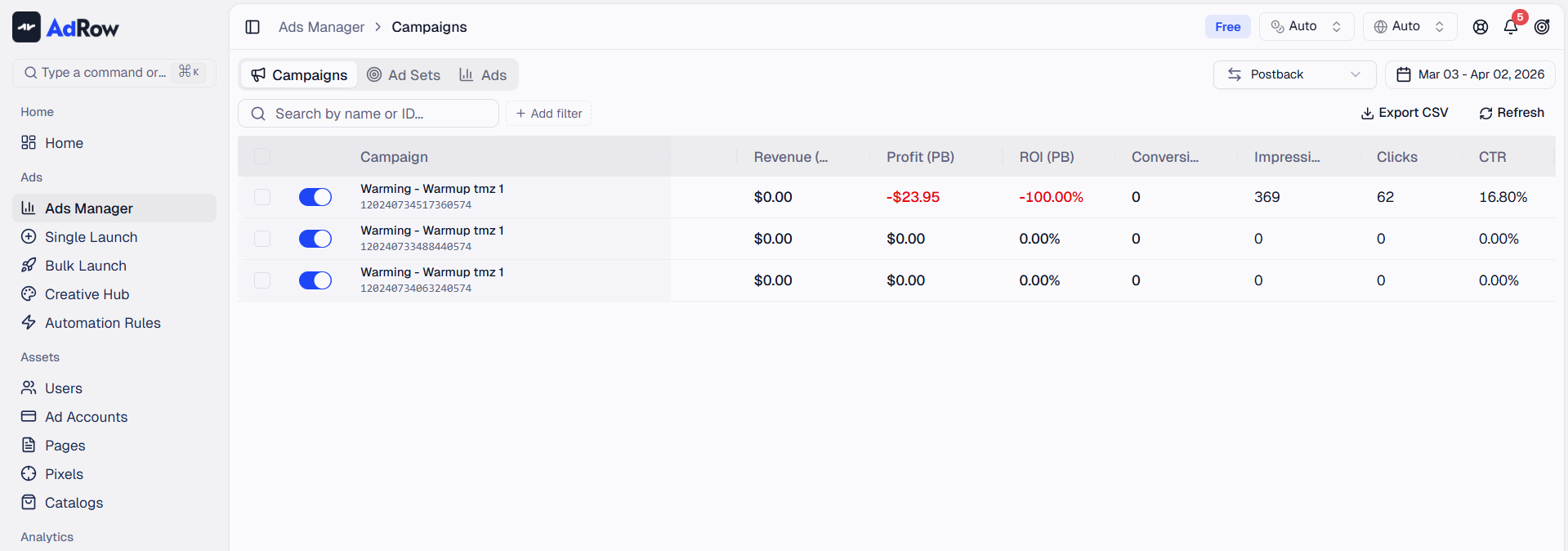
Five key metrics: Total Spend, Revenue (including postback conversions), Profit (green when positive, red when negative), ROI (percentage with trend arrow), and Conversions.
Secondary Metrics Row
Performance Chart
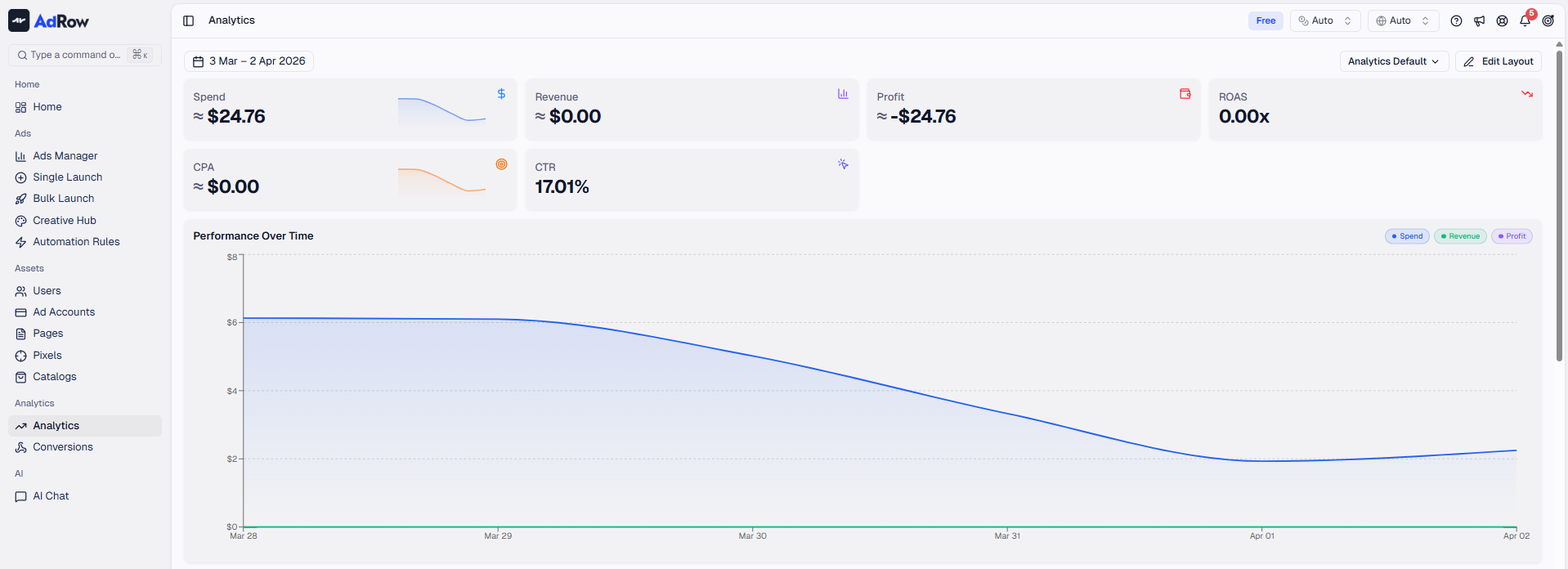
Day-by-day visual breakdown of Spend (blue), Revenue (green), and Profit (purple). Hover over any point for exact values.
Account Summary Table
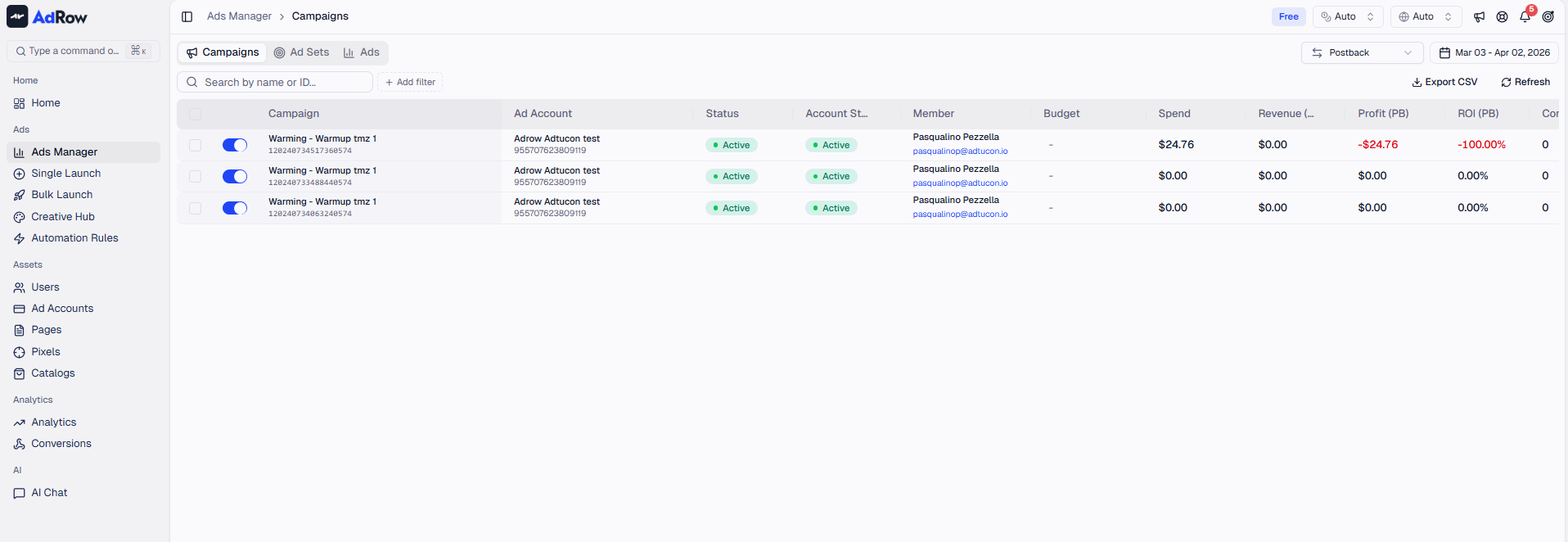
Per-account performance breakdown showing Account Name, Member (for team data), Spend, Clicks, and Campaigns. Click any row to jump to Ads Manager filtered to that account.
Recent Activity
Shows recent sync and report operations with their status. Click "View All" for full history.
Quick Actions
Shortcut buttons: Ads Manager, Launch Campaign, Sync Account. Owners also see Manage Team.
Filtering Your Data
All dashboard sections update together when you change a filter.
Date Range
Select a custom range or use presets (today, yesterday, last 7/30 days). Changing the date range immediately recalculates all metrics.
Currency
Original ("Account") — Each account in its native currency, with a "multi-currency" indicator for totals.
Converted — Select a target currency; Wevion converts using daily exchange rates.
Timezone
Select a different timezone and Wevion proportionally reattributes data to the correct days using hourly data.
Team Member Filter (Owners Only)
Owners can switch between: All Team (aggregated, with per-member breakdown table), My Data (personal only), or a Specific Member. This filter is enforced at the data level.
Key Metrics Explained
MetricCalculation | |
Total Spend | Sum of daily spend across all campaigns |
Revenue | Sum of conversion values from postback tracking |
Profit | Revenue - Spend |
ROI | (Revenue - Spend) / Spend x 100 |
Conversions | Total from server-to-server postback tracking |
Impressions | Sum across all campaigns |
Clicks | Sum across all campaigns |
Avg CTR | (Clicks / Impressions) x 100 |
Note: Revenue and conversions come from server-to-server postback tracking. If postbacks are not configured, these show zero. Connecting Your Meta (Facebook) Account
Frequently Asked Questions
Why is my dashboard empty? Wait for the first insight sync (~15 minutes after connecting). Or use the refresh button for a manual update.
Why do my numbers not match Facebook Ads Manager exactly? Small discrepancies are normal from timezone differences, attribution windows, or data collection timing. Currency conversion can also introduce minor rounding.
Why does my Revenue show zero? Revenue comes from postback tracking. If postback URLs are not configured, revenue shows zero. Connecting Your Meta (Facebook) Account
Can I see historical data from before I connected Wevion? Wevion syncs available historical data on first connection. Check the date range picker for your earliest available data.
How often does the data refresh? Every 15 minutes automatically. Check the "Last Updated" timestamp, or use the refresh button for on-demand updates.