Starting and Managing Your Subscription
Last updated: April 18, 2026
This article covers how to start your Wevion subscription, manage your billing settings, view invoices, and access the Stripe Customer Portal.
Prerequisites
An Wevion account
A valid payment method (credit card, debit card, or SEPA direct debit)
How It Works
Wevion subscriptions are managed through Stripe. When you first create an account and select a plan, you start a 14-day free trial. After the trial, billing begins automatically based on your chosen plan and billing interval.
Your subscription has several states:
StatusDescription | |
Trial | Free 14-day trial. Full access to all features. |
Active | Paid subscription. Billing recurs monthly or annually. |
Past Due | Payment failed. Account enters read-only mode after 24 hours. |
Canceled | Subscription canceled. Access continues until end of current period. |
Unpaid | Multiple payment failures. Account is inactive. |
Step-by-Step Guide
Starting Your Subscription
After creating your Wevion account, you'll be directed to the plan selection page
Choose your preferred plan (Starter, Professional, or Enterprise)
Select your billing interval — Monthly or Annual
Click Select Plan
You'll be redirected to Stripe Checkout
Enter your payment details
You can apply a promotion code if you have one
Complete the checkout
Your 14-day trial starts immediately — your card will not be charged until the trial ends
Viewing Your Current Subscription
Navigate to Billing in the left sidebar
The Your Plan section at the top shows:
Your current plan name and badge (Trial, Active, etc.)
Billing interval (Monthly or Annual)
Next renewal date
Whether cancellation is pending
Viewing Resource Usage
Navigate to Billing
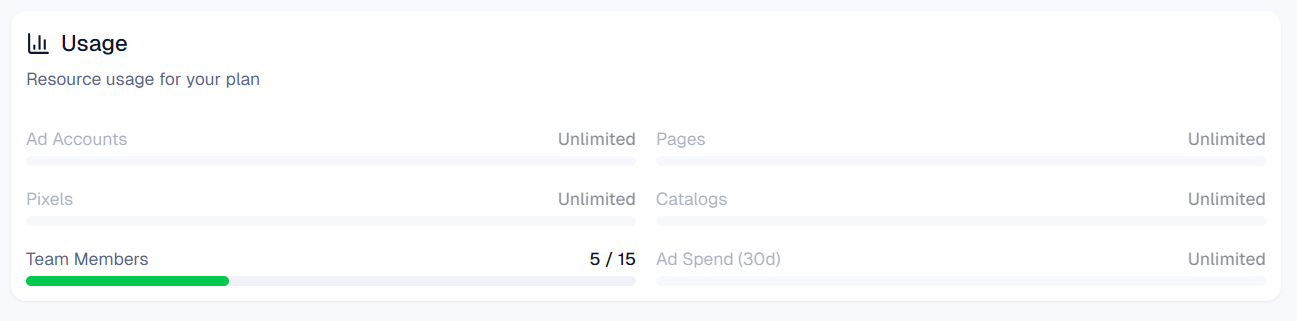
Scroll to the Usage section
You'll see your current usage for each resource:
Ad Accounts — connected vs. plan limit
Fan Pages — connected vs. plan limit
Pixels — connected vs. plan limit
Catalogs — connected vs. plan limit
Team Members — current count vs. plan limit
Ad Spend (30d) — rolling 30-day spend vs. cap
Each resource shows a progress bar and percentage
Viewing Payment History
Navigate to Billing
Scroll to the Payment History section
You'll see a list of all invoices with:
Date — when the payment was made
Description — what the payment was for
Amount — the total charged
Status — paid, failed, etc.
Invoice — click to download the PDF
Updating Your Payment Method
Navigate to Billing
Click Manage to open the Stripe Customer Portal
In the portal, you can:
Add or update your credit card
Switch to SEPA direct debit
Set a default payment method
Changes take effect immediately for future charges
Viewing and Downloading Invoices
Navigate to Billing > Payment History
Click the invoice link next to any payment
The invoice PDF will open in a new tab or download automatically
Invoices reflect your company information from your profile settings
Options and Configuration
OptionDescription | |
Plan | Starter (€79/mo), Professional (€199/mo), or Enterprise (€499/mo) |
Billing interval | Monthly or Annual (annual saves ~15-20%) |
Payment method | Credit/debit card or SEPA (managed via Stripe Portal) |
Promotion codes | Applied during checkout |
Extra user slots | €99/month per additional team member |
FAQ
When does billing start? Billing starts when your 14-day trial ends. If you cancel before the trial ends, you won't be charged.
Can I change my billing interval from monthly to annual? Yes. Changing your plan (even to the same plan with a different interval) counts as a plan change and is subject to the 30-day cooldown. See Upgrading or Downgrading Your Plan.
What happens if my payment fails? Your account enters a grace period (approximately 24 hours) during which Stripe retries the payment. If the payment continues to fail, your account switches to read-only mode. Update your payment method in the Stripe Portal to resolve this.
Can I get a receipt for each payment? Yes. All invoices are available in the Payment History section and can be downloaded as PDFs.
Is VAT included in the prices? VAT may be applied based on your location and company VAT number. Provide your VAT number in your profile settings for proper invoice formatting.
Can I pause my subscription instead of canceling? Pausing is not available. You can cancel and resubscribe later, or downgrade to a lower plan.