Bulk Campaign Launcher — Creating Multiple Campaigns at Once
Last updated: April 18, 2026
The Bulk Campaign Launcher lets you create and publish multiple campaigns simultaneously, saving hours of repetitive work. Instead of launching campaigns one by one, you can set up 5, 10, or even 20+ campaigns in a single operation.
Prerequisites
Familiarity with the Campaign Launcher Campaign Launcher Overview — How It Works
You've launched at least one campaign successfully Launching Your First Campaign — Step by Step
How It Works
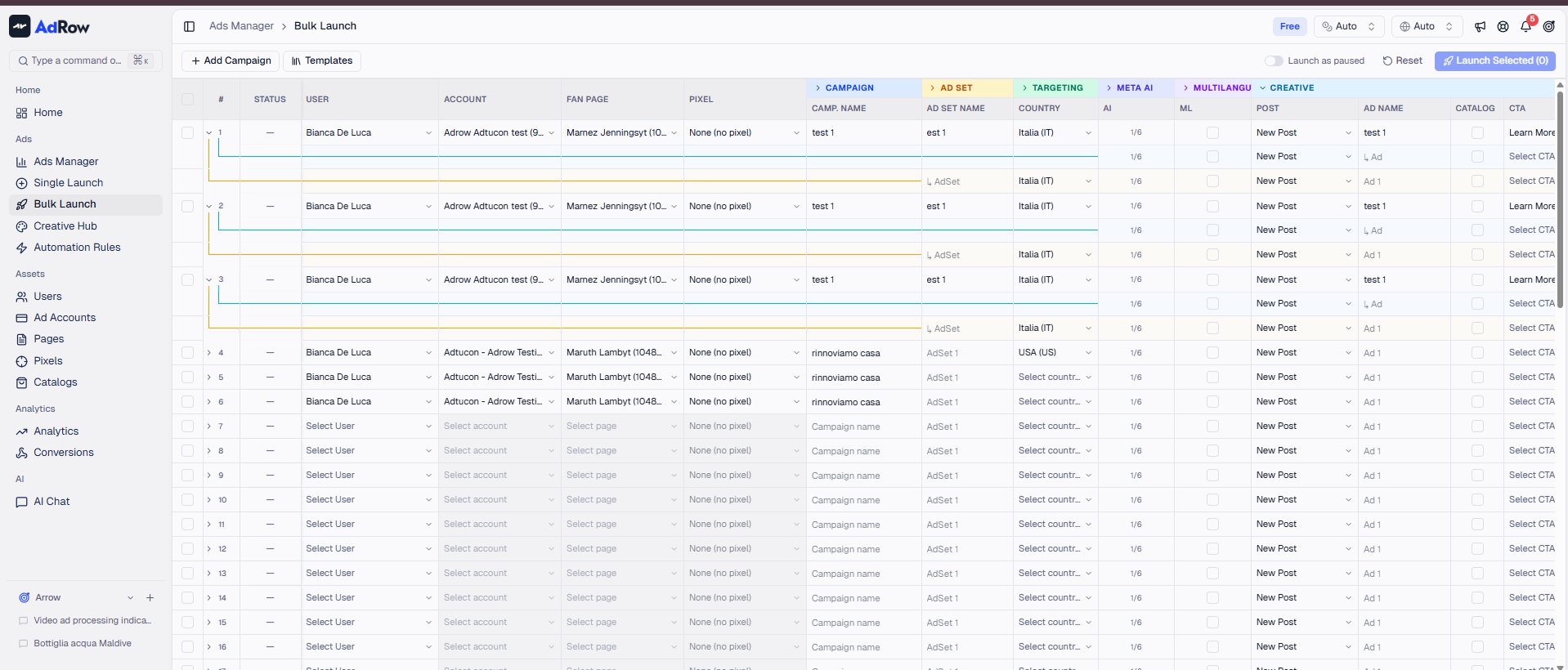
The bulk launch uses the same spreadsheet-style interface as the standard Campaign Launcher, but with the ability to configure multiple campaigns in the same grid. Each campaign has its own:
Campaign name and objective
Budget and bid strategy
One or more ad sets (each with targeting)
One or more ads (each with creative)
When you hit Publish, all campaigns are dispatched to the background processing queue independently. This means:
Each campaign is created separately on Meta
A failure in one campaign does not affect the others
Each campaign has its own progress tracker
You can track all launches in real-time
Step-by-Step Guide
Step 1: Add Multiple Campaigns
Open the Campaign Launcher
Configure your first campaign as usual (campaign > ad set > ad)
Click the "+ Add Campaign" button to add another campaign row
Configure the second campaign with its own settings
Repeat for as many campaigns as you need
Step 2: Use Copy/Paste for Speed
The spreadsheet grid supports copy/paste operations, making bulk setup fast:
Copy a cell: Select a cell, press
Ctrl+C(orCmd+C)Paste: Click the target cell, press
Ctrl+V(orCmd+V)Copy a row: Select the row, copy, and paste to quickly duplicate configurations
Multi-select: Hold
Shiftto select a range of cells
Power tip: Set up one campaign perfectly, then copy the entire row to create variations. Change only what differs (name, country, creative, etc.).
Step 3: Validate All Campaigns
Before publishing, Wevion validates every campaign in the grid. Errors are shown inline:
Red indicators appear on cells with issues
Each campaign is validated independently
You can fix one campaign's issues without affecting others
Step 4: Publish All
Click Publish. You'll see:
A summary showing how many campaigns will be created
Individual progress trackers for each campaign
Real-time status updates as each campaign publishes
Step 5: Monitor Progress
Each campaign goes through these steps independently:
Campaign creation on Meta
Ad set creation (one per ad set)
Media upload (images/videos)
Ad creation (one per ad)
If a campaign fails, the rollback mechanism cleans up only that campaign's resources. Other campaigns continue unaffected.
Options and Configuration
Mixing Configurations
In a bulk launch, each campaign can have completely different settings:
What Can DifferExample | |
Objective | Campaign 1 = Sales, Campaign 2 = Traffic |
Ad Account | Campaign 1 = Account A, Campaign 2 = Account B |
Budget | Campaign 1 = €50/day CBO, Campaign 2 = €20/day ABO |
Countries | Campaign 1 = Italy, Campaign 2 = Germany |
Creative | Campaign 1 = Video, Campaign 2 = Image |
Ad Type | Campaign 1 = Standard, Campaign 2 = Multi-language |
Using Templates for Bulk Setup
Combine templates with bulk launch for maximum efficiency:
Save your proven campaign configuration as a template [See: ART-208]
Load the template to populate the grid
Duplicate rows and modify the variations you want to test
Publish all at once
Best Practices
Testing Strategies with Bulk Launch
Country testing: Create identical campaigns targeting different countries:
Campaign 1: Italy, €20/day
Campaign 2: Spain, €20/day
Campaign 3: France, €20/day
Creative testing: Same audience, different creatives:
Campaign 1: Video ad, Sales objective
Campaign 2: Image ad, Sales objective
Campaign 3: Carousel ad, Sales objective
Audience testing: Same creative, different audiences:
Campaign 1: Broad targeting (18-65, All)
Campaign 2: Lookalike audience
Campaign 3: Interest-based custom audience
Performance Tips
Batch size: For best reliability, launch in batches of 10-20 campaigns. Very large batches may experience Meta API rate limits.
Media preparation: Pre-upload images and videos before configuring the grid. Large video files slow down the publish process.
Naming convention: Use a consistent naming scheme (e.g., "ProductName-Country-Audience-Creative") to easily identify campaigns in the Ads Manager later.
Frequently Asked Questions
Q: Is there a maximum number of campaigns I can launch at once? A: There's no hard limit from Wevion. However, Meta's API rate limits may slow down very large batches. We recommend launching 10-20 campaigns at a time for optimal speed.
Q: What happens if some campaigns succeed and others fail? A: Each campaign is independent. Successful campaigns go live on Meta as normal. Failed campaigns are rolled back (cleaned up), and you'll see the specific error for each failure in the progress tracker.
Q: Can I mix CBO and ABO campaigns in the same bulk launch? A: Yes. Each campaign has its own budget level setting, so you can have CBO and ABO campaigns in the same batch.
Q: Can I launch campaigns across different ad accounts? A: Yes. Each campaign can target a different ad account, as long as you have access to all of them with your selected Meta token.
Q: How do I know when all campaigns are done publishing? A: The progress tracker shows a green checkmark for each completed campaign. Once all show green (or red for failures), the bulk launch is complete. You'll also receive in-app notifications for each campaign.