Ads Manager Overview — Your Campaign Control Center
Last updated: April 18, 2026
The Ads Manager is your central hub for monitoring, analyzing, and managing all your Meta advertising campaigns. From a single screen, you can track performance, edit budgets, toggle campaigns on/off, and drill down from campaign level all the way to individual ads.
Prerequisites
An active Wevion account
At least one ad account with synced campaign data Syncing Your Meta Assets — How It Works
Campaigns running or with historical data
How It Works
The Ads Manager displays performance data from your Meta ad accounts using a pre-aggregated daily insights system. Rather than calling the Meta API in real-time every time you load the page, Wevion syncs your campaign data periodically and stores daily performance snapshots. This means:
Fast loading — Data loads in seconds, not minutes
Rich filtering — Filter and sort across all your campaigns instantly
Automatic updates — Data refreshes automatically via scheduled syncs
Three-Level View
The Ads Manager operates at three levels, matching Meta's campaign structure:
LevelWhat You See | |
Campaigns | All your campaigns across all ad accounts. Shows aggregated metrics per campaign. |
Ad Sets | All ad sets within a campaign (or across multiple campaigns). Shows targeting, budget, and per-ad-set metrics. |
Ads | Individual ads with their creative performance metrics. |
Navigate between levels using the level tabs at the top or by clicking on a specific campaign/ad set to drill down. Drill-Down — From Campaigns to Ad Sets to Ads
Data Freshness
Campaign data is synced automatically every 15 minutes via scheduled background jobs. You can also trigger a manual sync from the toolbar to get the latest data immediately.
When you first open the Ads Manager, it automatically syncs campaign statuses from Meta to ensure you see the most current status (Active, Paused, etc.).
Step-by-Step Guide
Viewing Your Campaigns
Navigate to Ads Manager from the main sidebar
You'll see a data table with all your campaigns for the selected date range
Use the date picker in the toolbar to change the date range Date Ranges, Timezones, and Currency
The summary bar at the top shows aggregated totals: total spend, impressions, clicks, and key metrics
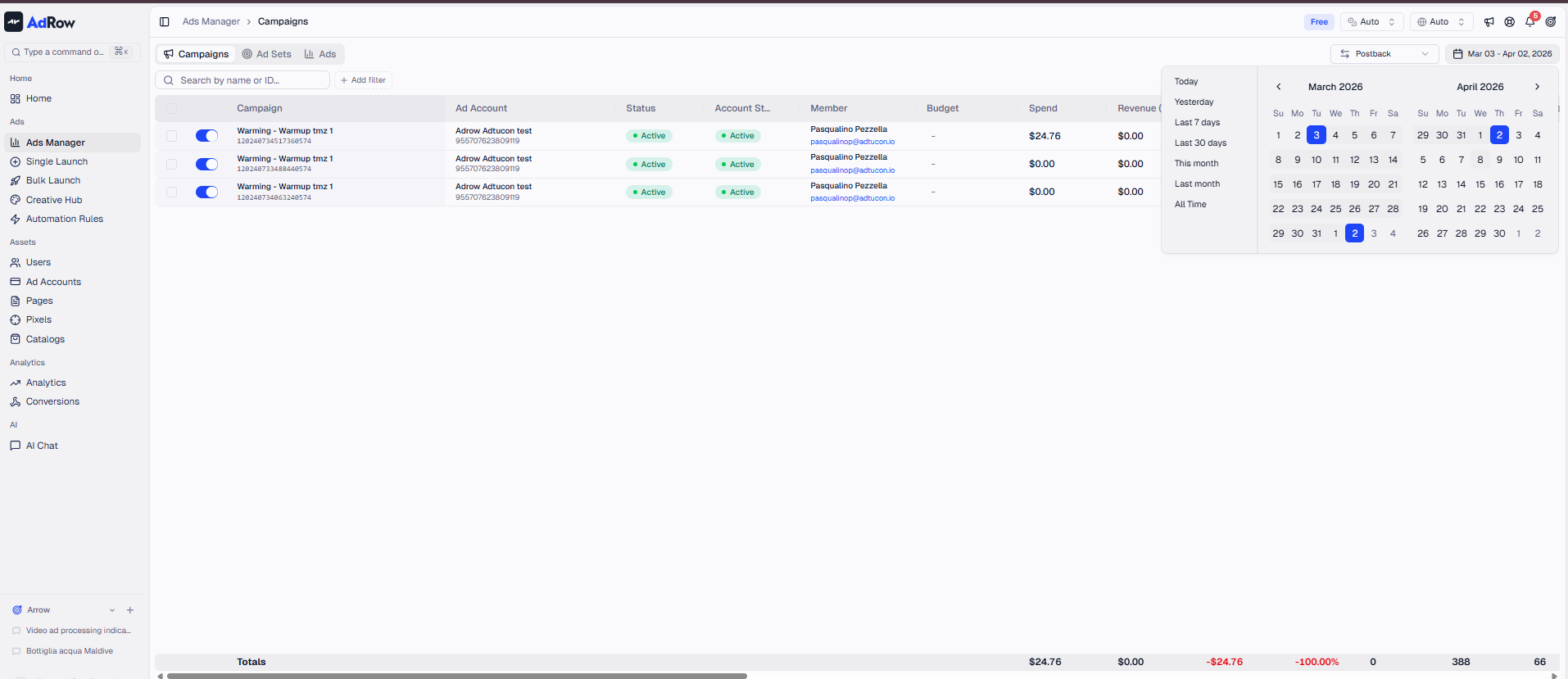
Understanding the Table
Each row represents a campaign (or ad set or ad, depending on your current level). Columns include:
Campaign info:
Campaign name and ID
Status (with color-coded badge)
Objective
Ad account name
Spend & budget:
Daily budget / Lifetime budget
Total spend for the selected period
Performance metrics:
Impressions, Clicks, Reach
CTR, CPC, CPM
Purchases, Leads, Add to Cart
Purchase Value, Cost per Purchase, Cost per Lead
ROAS, ROI, Profit
Frequency
Postback metrics (if configured):
Postback Conversions
Postback Revenue
Postback Profit
Postback ROI
Understanding Campaign Metrics for detailed metric definitions.
Taking Actions
From the Ads Manager, you can:
ActionHow | |
Pause/Resume | Toggle the switch in the status column [See: ART-216] |
Edit Budget | Click the budget cell and enter a new value [See: ART-216] |
Duplicate | Select a row and click Duplicate [See: ART-217] |
Filter | Use the toolbar filters or column-level dropdown filters [See: ART-212] |
Export | Download campaign data as CSV [See: ART-215] |
Drill Down | Click a campaign name to see its ad sets [See: ART-214] |
Bulk Operations
Select multiple rows using checkboxes, then use the bulk actions toolbar:
Bulk Pause — Pause all selected campaigns/ad sets/ads
Bulk Resume — Resume all selected items
Bulk Delete — Archive selected items on Meta
Bulk actions are processed in parallel (up to 5 at a time) for fast execution. Bulk Actions — Pause, Resume, Edit Budget
Options and Configuration
Toolbar Options
OptionDescription | |
Date Range | Select the time period for metrics |
Timezone | View data in your timezone or account timezone [See: ART-219] |
Currency | Convert all values to a single currency [See: ART-219] |
Account Filter | Show only campaigns from a specific ad account |
Team Member Filter | Show only campaigns from a specific team member (owner/admin view) |
Search | Free-text search by campaign/ad set/ad name or ID |
Refresh | Trigger a manual data sync |
Column Visibility
You can show or hide columns to focus on the metrics that matter most to you. The table remembers your column preferences.
Pagination
The Ads Manager loads data in pages of 50 items, with infinite scroll for seamless browsing. Summary totals always reflect ALL matching items, not just the visible page.
Frequently Asked Questions
Q: Why don't I see my newly launched campaign? A: After launching, wait a few seconds for the data to sync. You can also click the Refresh button in the toolbar to trigger an immediate status sync. New campaigns appear after the sync completes.
Q: Why does the data look different from Meta Ads Manager? A: Small differences can occur due to timezone handling and data sync timing. Wevion aggregates daily data, so mid-day numbers may differ slightly from Meta's real-time reporting. Ensure you're comparing the same date range and timezone. [See: ART-219]
Q: Can I see data from multiple ad accounts in one view? A: Yes! The Ads Manager shows campaigns from all your assigned ad accounts in a single unified view. Use the account filter to narrow down to a specific account if needed.
Q: What do I do if a campaign shows "With Issues"? A: This means Meta has flagged a delivery issue. Click into the campaign to investigate. Common causes include budget depletion, rejected creatives, or billing problems. Understanding Campaign Statuses
Q: How far back can I see historical data? A: The date range picker shows the full range of available data. When you first connect an ad account, Wevion backfills up to 6 months of historical data automatically.