Drill-Down — From Campaigns to Ad Sets to Ads
Last updated: April 8, 2026
Drill-down lets you navigate from a high-level campaign view all the way down to individual ad performance. This hierarchical navigation is key to understanding what's working and what needs optimization.
Prerequisites
Access to the Ads Manager Ads Manager Overview — Your Campaign Control Center
At least one campaign with ad sets and ads
How It Works
The Ads Manager follows Meta's three-level hierarchy:
Campaigns → Ad Sets → Ads
You start at the campaign level, where you see aggregated metrics across all ad sets and ads. By drilling down, you progressively reveal more granular data:
Campaign level — How is this campaign performing overall?
Ad Set level — Which audiences/targeting combinations work best?
Ad level — Which specific creatives are driving results?
Step-by-Step Guide
Drilling Into a Single Campaign
In the Ads Manager at the Campaigns level, find the campaign you want to investigate
Click on the campaign name — this drills down to show all ad sets within that campaign
The view switches to the Ad Sets tab with the campaign filter applied
A breadcrumb appears at the top:
All Campaigns > Campaign NameTo go deeper, click on an ad set name to see its individual ads
The breadcrumb updates:
All Campaigns > Campaign Name > Ad Set Name
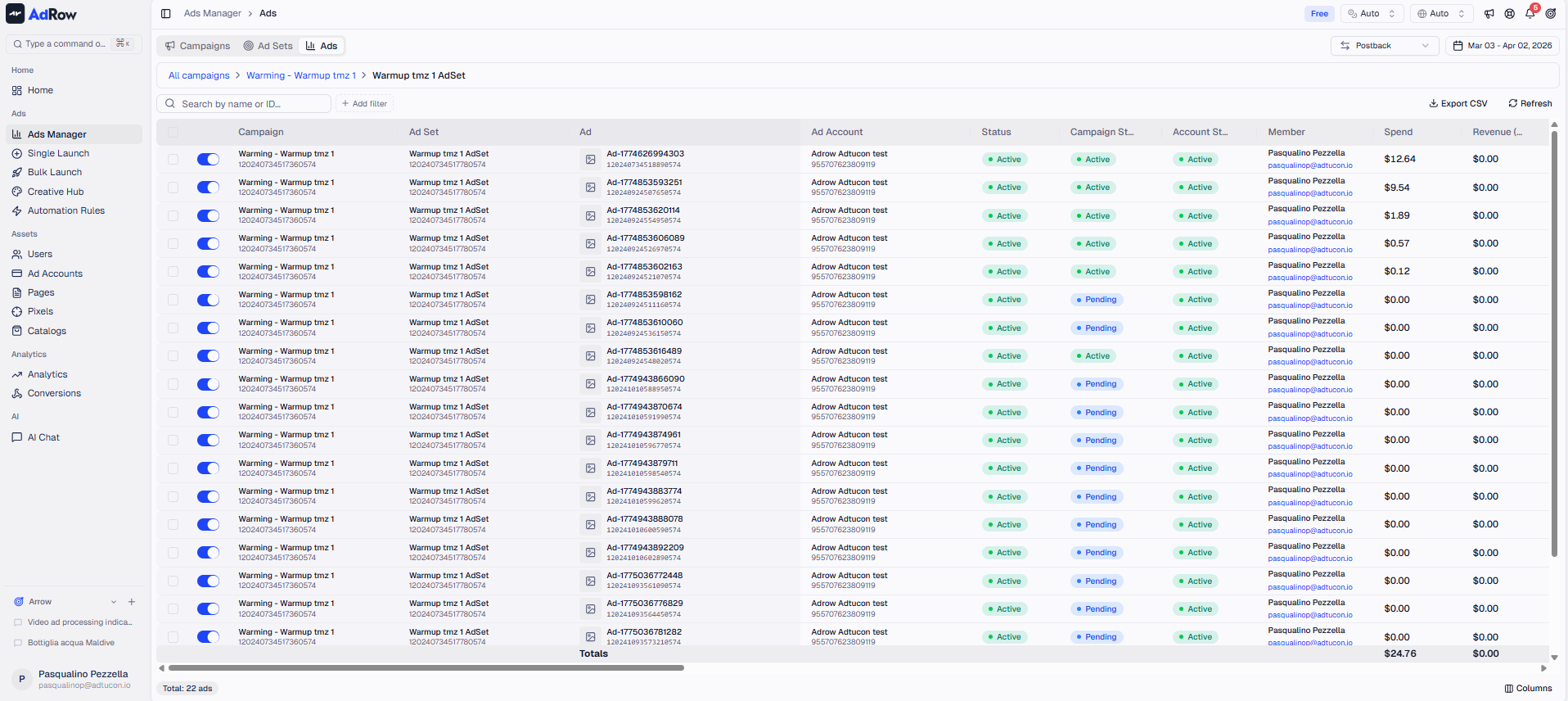
Drilling Into Multiple Campaigns
At the Campaigns level, select multiple campaigns using the checkboxes
Click the "Ad Sets" tab in the level navigation
The view shows all ad sets across the selected campaigns
You can continue to the "Ads" tab to see all ads across those campaigns
Drilling Into Multiple Ad Sets
At the Ad Sets level, select multiple ad sets using the checkboxes
Click the "Ads" tab
The view shows all ads across the selected ad sets
Navigating Back
Use the breadcrumb navigation to go back to any previous level:
Click
All Campaignsto return to the top levelClick the campaign name to go back to its ad sets
Or simply click the level tab (Campaigns, Ad Sets, Ads) to switch views.
Options and Configuration
What Metrics Change at Each Level
Each level shows metrics specific to that entity:
LevelUnique ColumnsShared Metrics | ||
Campaigns | Objective, Campaign Status | Spend, Impressions, Clicks, CTR, CPC, CPM, Purchases, Leads, ROAS, ROI, Profit |
Ad Sets | Ad Set Status, Daily Budget, Bid Amount, Bid Strategy | Same shared metrics, attributed to each ad set |
Ads | Ad Name, Ad Status | Same shared metrics, attributed to each ad |
Missing Entities
The Ads Manager also shows entities that exist in your account but have no data in the selected date range. For example:
A paused ad set that had no impressions this week still appears in the drill-down (with all metrics showing 0)
This ensures you can see and manage all your entities, not just active ones
Summary Totals Update
When you drill down, the summary bar at the top updates to reflect only the filtered subset:
Drilling into one campaign shows totals for that campaign only
Drilling into one ad set shows totals for that ad set only
This makes it easy to compare an entity's contribution to the overall account.
Best Practices
Performance Analysis Workflow
Start at Campaign level — Sort by Spend (descending) to see your biggest campaigns
Drill into top spenders — Check if spend is translating to results (ROAS, CPA)
At Ad Set level — Identify which audiences perform best and worst
At Ad level — Find your winning creatives vs underperformers
Take action — Pause underperformers, increase budget on winners [See: ART-216]
Cross-Campaign Analysis
Select multiple campaigns of the same type to compare their ad sets side by side:
Select all your "Italy Traffic" campaigns
Drill into Ad Sets
Compare audience performance across campaigns
Frequently Asked Questions
Q: Can I drill down directly from Campaigns to Ads, skipping Ad Sets? A: Yes. Select one or more campaigns, then click the "Ads" tab directly. This shows all ads across the selected campaigns without the intermediate ad set view.
Q: Why does the ad set show different metrics than the sum of its ads? A: Small discrepancies can occur because Meta sometimes attributes impressions or clicks at the ad set level that don't map exactly to individual ads. This is normal and usually negligible.
Q: Can I take actions (pause, edit budget) from the drill-down view? A: Yes. All actions available at each level work in the drill-down view. You can pause an ad set, edit its budget, or toggle individual ads — all while within the drill-down. [See: ART-216]
Q: How do I see all ad sets across all campaigns? A: Click the "Ad Sets" tab without selecting any specific campaign. This shows every ad set across all your ad accounts.