Campaign Templates — Save and Reuse Configurations
Last updated: April 8, 2026
Campaign Templates let you save your entire Campaign Launcher configuration and reuse it later. Instead of manually configuring the same settings every time, load a template and launch in seconds.
Prerequisites
Familiarity with the Campaign Launcher Campaign Launcher Overview — How It Works
At least one campaign configured in the launcher
How It Works
A campaign template captures your full launcher configuration as a snapshot:
Campaign settings (objective, budget level, bid strategy)
Ad set configurations (targeting, placements, optimization goal)
Ad configurations (ad type, creative references, copy)
Number of ad sets and ads
Templates are saved per workspace — each team member creates and manages their own templates. Template data is stored as a JSON snapshot (up to 500 KB), so even complex multi-adset, multi-ad configurations are preserved.
Step-by-Step Guide
Saving a Template
Configure your campaign in the Campaign Launcher (campaign, ad sets, ads)
Click the Save as Template button
Enter a template name (must be unique within your workspace)
Click Save
The template is now available for future use
Tip: Use descriptive names like "IT-Sales-Video-CBO-50EUR" so you can quickly identify templates later.
Loading a Template
Open the Campaign Launcher
Click the Load Template button
Browse your saved templates — each shows a preview with:
Objective
Budget configuration
Number of ad sets and ads
Target countries
Select the template you want to load
The launcher grid populates with the saved configuration
Modify any fields as needed before publishing
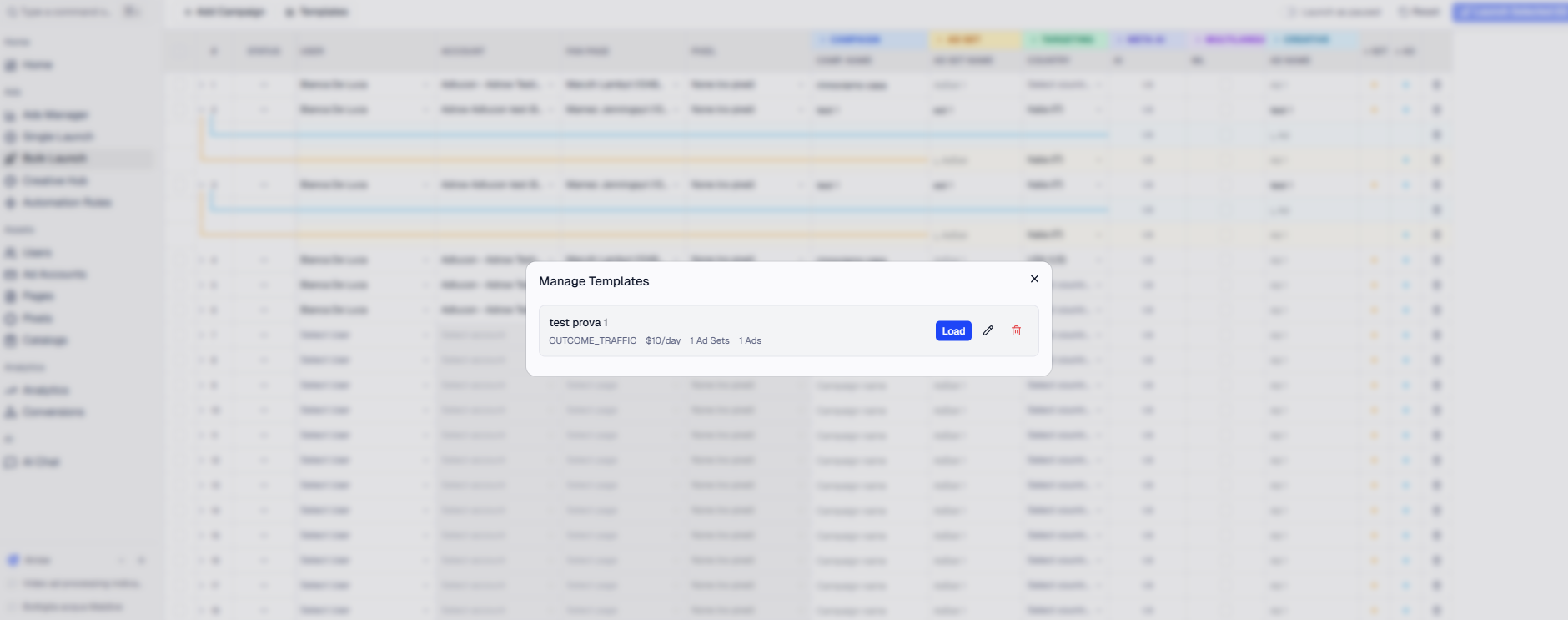
Renaming a Template
Open the template list
Find the template you want to rename
Click the Rename option
Enter the new name (must be unique)
Confirm
Deleting a Template
Open the template list
Find the template you want to delete
Click the Delete option
Confirm the deletion
Note: Deleting a template does not affect any campaigns previously created from it.
Options and Configuration
What's Saved in a Template
SavedNot Saved | |
Campaign name, objective, budget level | Meta profile (token) selection |
Bid strategy and bid amount | Specific ad account |
Ad set targeting (countries, age, gender) | Uploaded media files (images/videos) |
Placement settings | Pixel selection |
Ad set schedule (start/end dates) | Fan page selection |
Ad copy (primary text, headline, description) | Custom audience selections |
CTA selection | |
Landing page URL | |
Ad type (standard, multilanguage, catalog, app) | |
DSA fields | |
Advantage+ settings |
Important: Account-specific selections (Meta profile, ad account, pixel, fan page) are not saved because they depend on the user's access. After loading a template, you'll need to select these fields before publishing.
Template Size Limit
Templates have a maximum size of 500 KB. This is more than enough for even the most complex campaign configurations with dozens of ad sets and ads. If your template exceeds this limit (extremely rare), simplify the configuration.
Template Uniqueness
Template names must be unique within your workspace. If you try to create a template with a name that already exists, you'll get an error. Rename the existing template first, or choose a different name.
Best Practices
When to Use Templates
Recurring campaigns — Weekly promotions, monthly sales, seasonal ads
Multi-market launches — Save a proven configuration, load it, change the country
Team standardization — Create templates for your team's standard campaign structure
A/B testing — Save your base configuration and create variations
Template Workflow for Bulk Launches
Save your best-performing campaign configuration as a template
Load the template in a new session
Duplicate the campaign row multiple times [See: ART-207]
Change only the variable (country, creative, audience)
Publish all at once
Frequently Asked Questions
Q: Can I share templates with other team members? A: Templates are currently tied to your individual workspace session. Other team members cannot see or load your templates directly. To share a configuration, have them set up the Campaign Launcher while you share the settings verbally or via documentation.
Q: What happens if I update the template after using it? A: Templates are independent snapshots. Updating a template doesn't affect campaigns already created from previous versions.
Q: Can I create a template from an existing running campaign? A: Not directly. Templates are created from the Campaign Launcher configuration. To recreate a running campaign as a template, manually configure the launcher with the same settings and save it.
Q: Is there a limit on how many templates I can save? A: There's no hard limit on the number of templates per workspace. However, keep the list manageable by deleting outdated templates.