Generating AI Images
Last updated: April 18, 2026
Wevion's Creative Hub includes a built-in AI image generator that lets you create ad creatives directly within the platform. Whether you are starting from a text description or iterating on an existing product image, the AI Image Generator produces Meta-ready visuals in seconds.
Prerequisites
An active Wevion account with sufficient team balance for generation costs. Understanding AI Credits
Access to Creative Hub (all roles have access by default).
Cost note: Each image generation incurs a cost based on the AI engine and the number of variants requested. Image generation costs are billed separately from AI Chat credits. Understanding AI Credits
Accessing the AI Image Generator
The AI Image Generator is part of Wevion's AI Chat Assistant inside Creative Hub. The assistant understands context and optimizes your prompts automatically.
Navigate to Creative Hub from the sidebar.
Open the AI Chat Assistant (the chat panel).
Describe what you want to generate in natural language — for example: "Generate a banner for a fitness supplement on a dark background".
The assistant interprets your request, optimizes the prompt for the AI engine, and triggers the generation.
📸 Creative Hub page with the AI Chat Assistant panel open, showing a user prompt requesting image generation
Step-by-Step Guide
1. Writing Your Prompt
The prompt is the most important part of image generation. Describe your image in natural language and the assistant optimizes it automatically.
What to include:
Subject: The main focus (e.g., "a bottle of energy drink", "a woman using a skincare product")
Setting/Background: The scene (e.g., "on a marble countertop", "solid gradient background")
Style: Visual approach (e.g., "photorealistic", "flat design", "editorial photography")
Lighting and mood: (e.g., "soft studio lighting", "dramatic shadows", "bright and airy")
Composition: (e.g., "centered product shot", "close-up", "wide angle lifestyle scene")
Example prompts:
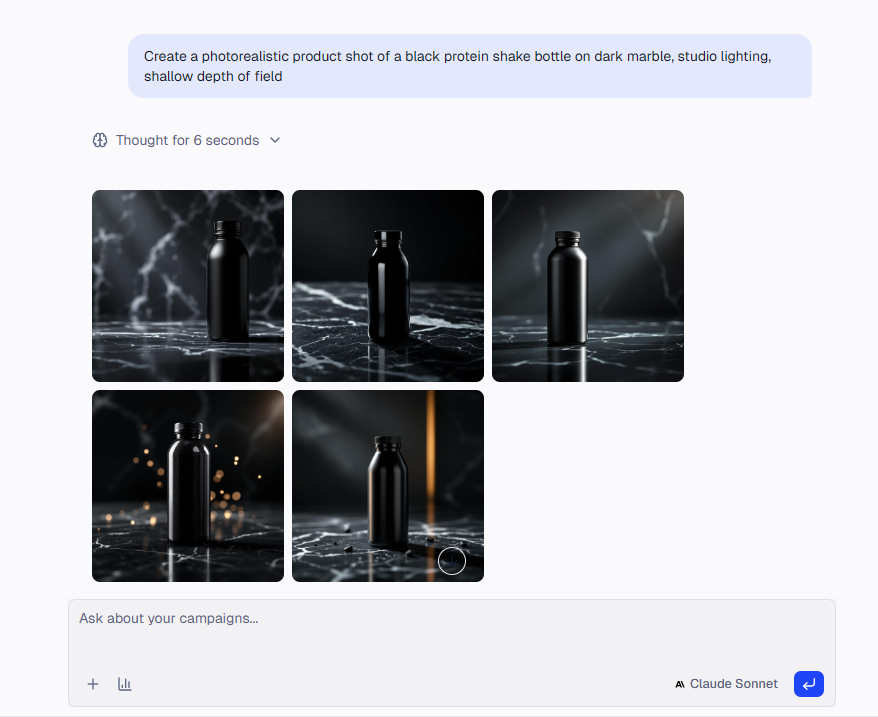
"Create a photorealistic product shot of a black protein shake bottle on dark marble, studio lighting, shallow depth of field"
"Generate a lifestyle banner showing a couple cooking in a modern kitchen, warm tones, editorial style"
Tip: You do not need to write prompts in English. The assistant handles translation and optimization automatically.
2. Using a Reference Image (Image-to-Image)
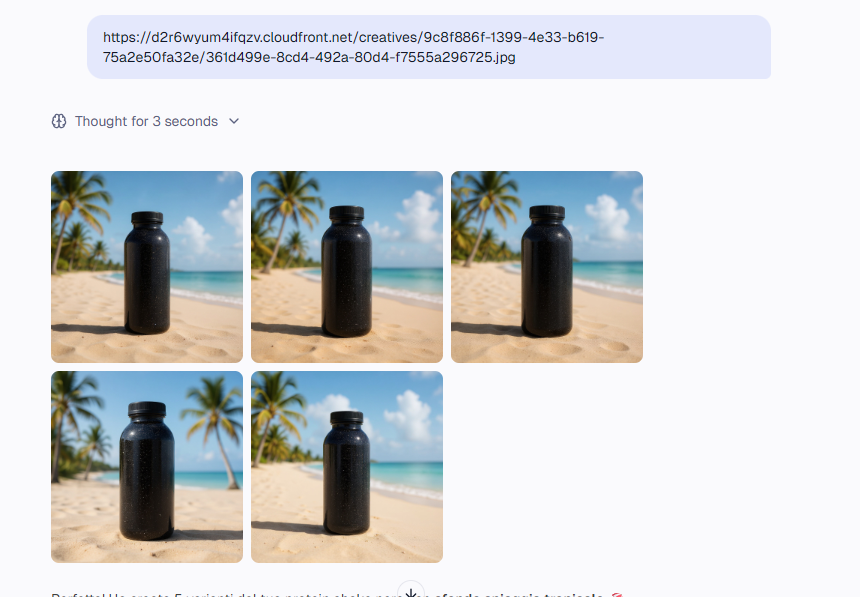
You can provide a reference image to generate variations based on an existing visual. Upload the image or share a URL with the assistant, then describe the variation you want:
"Use this product image and create a version with a beach background"
"Generate 3 variations of this image with different color themes"
This is ideal for creating multiple banner variations from a single product shot or placing a product in different contexts.
3. Choosing Image Format
Specify dimensions in your prompt or let the assistant choose based on the placement you mention:
"Generate a stories-size image (1080x1920) of..."
"Create this in feed square format"
If you do not specify dimensions, the default is 1024x1024. You can resize any generated image to multiple Meta formats afterward — resizing is free.
4. Selecting an AI Engine
Wevion offers multiple AI engines, each with different strengths. The assistant selects the optimal engine based on your request:
Text-to-image prompts use the default engine.
Image-to-image requests route to a specialized engine optimized for visual variations.
If the primary engine is unavailable, the system automatically falls back to an alternative — your generation will not fail due to a single engine being down.
The AI Chat Assistant selects the most appropriate image engine automatically based on your prompt. Manual engine selection is not available in the current interface.
5. Generating Multiple Variants
Request up to 10 variants in a single generation for A/B testing:
"Generate 5 variations of a product banner for this supplement"
Each variant is charged individually.
6. Reviewing and Saving Results
Once generation completes, the assistant displays results in the conversation. You can:
Preview each image at full resolution
Save to Creative Hub — images auto-save to your folder
Resize for placements — convert to specific Meta formats (free)
Remove background — strip backgrounds from generated images
Request refinements — describe changes and generate new variations
Image Formats for Meta Ads
Format NameDimensionsAspect RatioBest Use Case | |||
Feed Square | 1080 x 1080 px | 1:1 | Facebook/Instagram feed ads, carousel cards |
Feed Portrait | 1080 x 1350 px | 4:5 | Instagram feed ads (maximum vertical space) |
Stories / Reels | 1080 x 1920 px | 9:16 | Stories, Reels, full-screen placements |
Landscape | 1920 x 1080 px | 16:9 | In-stream video covers, landscape link ads |
Right Column | 1200 x 628 px | ~1.91:1 | Right column ads, link previews, Audience Network |
Pro tip: Generate at the largest dimension you need, then resize to all other formats. This ensures consistent quality and saves on generation costs.
Tips for Better Prompts
Be specific — Instead of "a nice product photo", try "a photorealistic studio shot of a glass serum bottle on a white pedestal, soft diffused lighting, minimalist background".
Include style cues — Mention photography styles ("editorial", "lifestyle", "flat lay") and visual qualities ("high contrast", "muted tones", "cinematic").
Think about ad context — If you need space for text overlay, say so: "leave the top third clean for headline text".
Iterate, do not restart — If the result is close, describe what to change: "Same concept but darker background with a subtle glow around the product".
Avoid text in images — AI-generated text is often garbled. Add text overlays in your design tool instead.
Specify dimensions — Choosing the exact format up front prevents awkward cropping later.
Monitoring Generation Status
Image generation is asynchronous. After submission, your request moves through these stages:
StatusMeaning | |
Pending | Queued and waiting to be picked up |
Processing | The AI engine is actively generating your image(s) |
Completed | Images are ready to view and download |
Failed | An error occurred — the assistant displays details |
Most generations complete within 10-60 seconds. The assistant updates status automatically.
For managing jobs across all creative types, see Managing AI Jobs — Status and Download.
Frequently Asked Questions
How many images can I generate at once? Up to 10 variants per request. Each variant is charged separately.
What file format are generated images? JPEG or PNG depending on the AI engine. Both are fully compatible with Meta Ads Manager.
Can I edit generated images after creation? You can resize and remove backgrounds within Wevion. For text overlays or compositing, download and use your design tool.
What happens if generation fails? The system automatically tries an alternative AI engine. If it still fails, you will see an error message — simply try again.
Are generated images saved automatically? Yes, to your Creative Hub folder where you can organize, rename, and share them.
Can I use a generated image as a reference for another generation? Yes. Generate an initial concept, then use it as a reference to create refined variations.
Is resizing free? Yes. Resizing is free and incurs no cost.
Do generated images have watermarks? No. Images are watermark-free and ready for your campaigns.