Assigning Ad Accounts to Team Members
Last updated: April 18, 2026
Before you can manage campaigns from an ad account in Wevion, the account must be assigned (connected). Assignment grants Wevion the necessary API permissions to read data and create campaigns on your behalf. This article explains how ad account assignment works and how to manage it within your team.
Prerequisites
A connected Meta account Connecting Your Meta (Facebook) Account
Synced ad accounts Syncing Your Meta Assets — How It Works
How It Works
When you assign (connect) an ad account in Wevion, a multi-step process runs in the background:
Permission Grant — Wevion assigns API permissions (Manage, Advertise, Analyze) to your business users on the ad account via Meta's API
Token Validation — Each available token is tested to confirm it can access the account
Permission Tracking — Wevion records which tokens have valid permissions for the account
Historical Data Backfill — Wevion automatically fetches up to 6 months of campaign insights data from Meta
Connection Status — The account is marked as "connected" and becomes available for campaign management
Permission Levels
When assigning, Wevion requests full permissions:
MANAGE — Full control (create, edit, delete campaigns)
ADVERTISE — Create and manage ads
ANALYZE — Read performance data
If full permissions fail (e.g., the token doesn't have sufficient access), Wevion falls back to a reduced permission set (Advertise + Analyze).
Employee Tokens
If your Meta token is an Employee role (not Admin), Wevion handles assignment differently:
Employee tokens cannot self-assign permissions via the API
Instead, Wevion uses pre-validated token access (assigned by your BM admin directly in Meta)
The account still works for reading data and managing campaigns, as long as the BM admin granted access
Step-by-Step Guide
Assigning a Single Ad Account
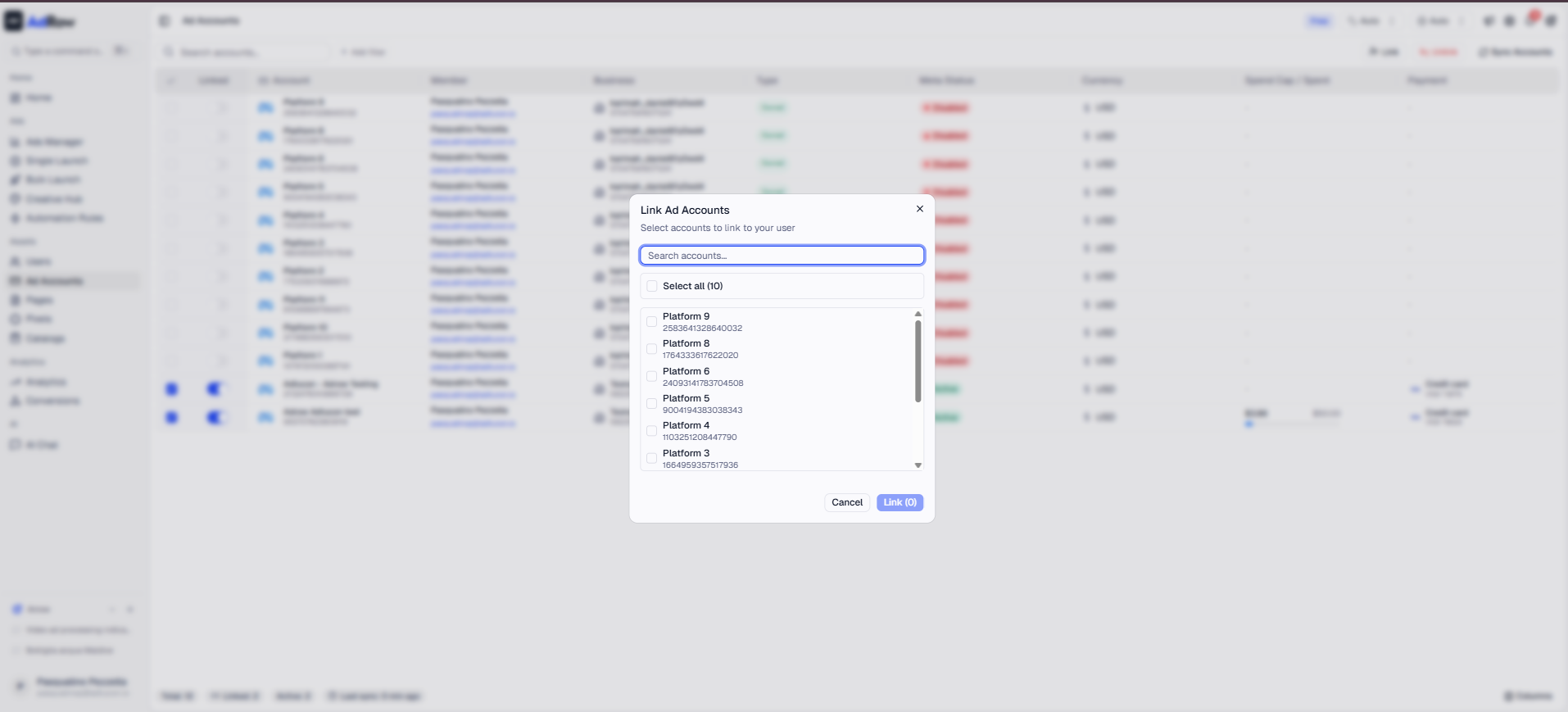
Navigate to Ad Accounts in the sidebar
Find the unconnected ad account in the list (shown as "Not Connected")
Click the Connect button on that account
Wevion processes the assignment in the background
When complete, the account status changes to Connected
Historical data begins backfilling automatically
Bulk Assignment (Assign All)
To connect all eligible ad accounts at once:
Navigate to Ad Accounts
Click Assign All in the toolbar
Wevion assigns all eligible accounts across your team
Disabled accounts (account status ≠ Active) are automatically skipped
A summary shows:
X assigned, Y skipped (disabled)
Note: "Assign All" groups accounts by team member and processes each member's accounts in parallel.
Checking Assignment Status
After assignment, each account shows:
Connected — Ready to use for campaign management
Not Connected — Needs to be assigned before use
Team Data Isolation
Wevion enforces strict data isolation between team members:
RoleWhat They See | |
Owner / Super Admin / Admin | All team members' ad accounts and data |
Manager / Media Buyer | Only their own assigned ad accounts and data |
Viewer / Finance | Read-only access to their assigned data |
This isolation is enforced at the database level — each record is tagged with a session_id that links it to a specific team member. Team admins can filter by member to view individual member data.
How Team Assignment Works
When a team member is added and their Meta account is connected:
The member's Meta token is synced
Ad accounts are discovered from their Business Managers
Each account is associated with the member's session
Assigning the account creates permissions specific to that member
The member can then launch campaigns and view insights for their accounts
Filtering by Team Member
As an owner or admin, you can:
Open the Ad Accounts page
Use the Member filter to view a specific team member's accounts
Or view all accounts across the entire team (default view)
Options and Configuration
Extended Account Data
Wevion also fetches financial details for your ad accounts:
FieldDescription | |
Account Status | Active, Disabled, Unsettled, etc. |
Spend Cap | Maximum spending limit on the account |
Amount Spent | Total amount spent on the account |
Balance | Current account balance |
Payment Method | Credit card, PayPal, direct debit, invoicing, etc. |
This extended data is refreshed in real-time and cached for 2 minutes for fast loading.
Resource Quotas
Your Wevion subscription plan determines how many ad accounts you can connect. If you reach your plan's limit, you'll need to upgrade before connecting additional accounts.
Frequently Asked Questions
Q: What happens to my running campaigns when I assign an account? A: Nothing. Assignment only grants Wevion read/manage permissions — it doesn't affect any running campaigns or active ads.
Q: Can I unassign (disconnect) an ad account? A: Yes. Disconnecting an account removes it from active management. Historical data is preserved for reporting.
Q: Why does assignment fail for some accounts? A: Common reasons:
Insufficient token permissions — Your Meta token doesn't have the required scopes. Try reconnecting your Meta account.
Account disabled — Disabled accounts (status ≠ 1) are skipped during bulk assignment.
BM access restrictions — Your Business Manager role may not allow granting permissions on that account.
Q: Can two team members manage the same ad account? A: Yes, if both members have Meta tokens with access to the same Business Manager and ad account. Each member sees the account under their own session.
Q: How long does the historical data backfill take? A: The backfill is split into monthly chunks and processed in the background. For a 6-month backfill, expect completion within 5-15 minutes depending on data volume.
Q: What's the difference between "syncing" and "assigning"? A: Syncing discovers which ad accounts exist in your Meta Business Managers. Assigning (connecting) grants Wevion permission to manage a specific account and triggers the data backfill. You must sync first, then assign.