Creating Ad Creatives — Images, Videos, and Copy
Last updated: April 18, 2026
Your ad creative is what people actually see — the image or video, the copy, the headline, and the call-to-action. This article covers everything you need to know about building effective ad creatives in Wevion's Campaign Launcher.
Prerequisites
A campaign and ad set configured in the Campaign Launcher Launching Your First Campaign — Step by Step
Your creative assets ready: images (JPEG, PNG, GIF, WebP) or videos (MP4)
Your ad copy written: primary text, headline, and optionally a description
How It Works
Each ad in Wevion consists of two main parts:
Media — An image or video that visually represents your offer
Copy — Text fields (primary text, headline, description) plus a call-to-action button and landing page URL
When you publish, Wevion uploads your media to Meta, creates an ad creative object, and attaches it to your ad. The whole process is handled automatically — you just fill in the fields.
Step-by-Step Guide
Creating a Standard Image Ad
In the Campaign Launcher, navigate to the ad row within your ad set
Click the Image field and upload your image file, or paste a URL
Supported formats: JPEG, PNG, GIF, WebP
You can also paste a Google Drive share link — Wevion will automatically download the file
Fill in the text fields:
Primary Text — The main body copy (appears above the image). Required.
Headline — Short, punchy text below the image. Required.
Description — Optional supporting text below the headline
Select a Call to Action (CTA) button
Enter your Landing Page URL — where users land after clicking
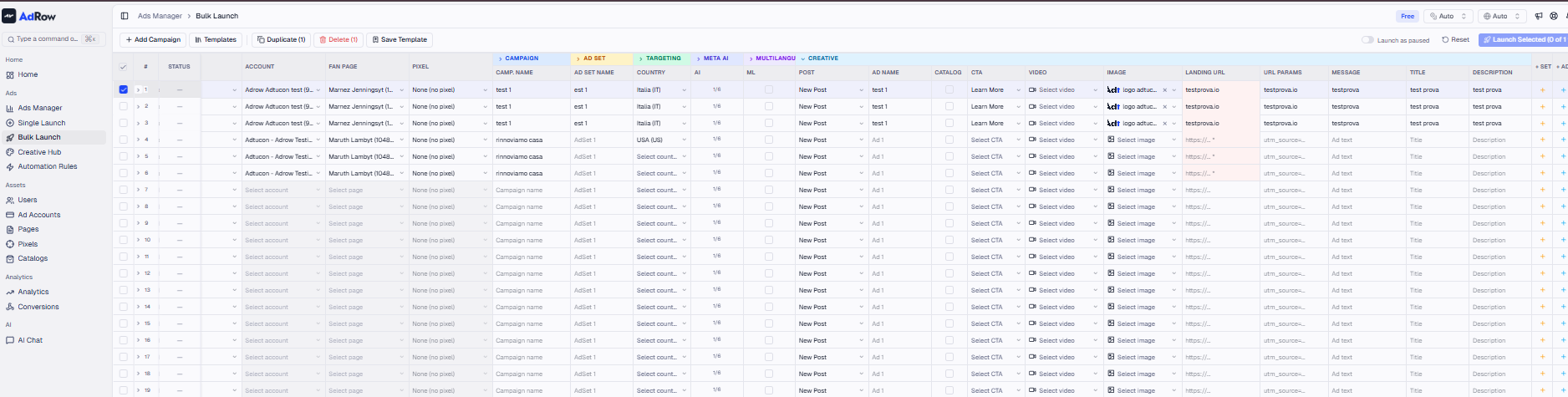
Creating a Video Ad
Click the Video field and upload your MP4 video file, or paste a URL
After upload, Wevion sends the video to Meta for processing. This can take up to 10 minutes depending on file size
A processing indicator will show the status
Meta automatically generates a thumbnail from the video
Fill in the text fields as above
Select your CTA and landing page URL
Tip: Video processing happens during publish. If you have large video files, expect the publish step to take longer than usual.
📸 Video ad with processing indicator
Using an Existing Post
Instead of creating new creative from scratch, you can reuse a published post from your fan page:
Toggle the Use Existing Post option on the ad row
Enter the Post ID of the published post you want to promote
No media upload or copy fields are needed — the ad uses the post exactly as-is
All existing engagement (likes, comments, shares) is preserved
Why use existing posts? Promoting a post that already has social proof (engagement) often performs better than a fresh ad with zero engagement.
Creating Multi-Language Ads
For campaigns targeting multiple countries or language groups:
Set the ad type to Multi-language
Configure the primary language with your main creative (image/video + copy)
Add secondary languages — each gets its own set of text fields (primary text, headline, description, landing page URL)
All languages share the same media (image or video)
Meta automatically shows the correct language version based on the user's locale
Wevion supports 25 languages: IT, EN, ES, FR, DE, PT, NL, PL, RU, AR, JA, KO, ZH, TR, TH, VI, ID, HE, HU, RO, CS, DA, FI, SV, NO. Each language is mapped to the correct Facebook locale (e.g., Italian → it_IT, Japanese → ja_XX).
Creating Catalog (DPA) Ads
For e-commerce advertisers with a Meta Product Catalog:
Set the ad type to Catalog
Select your Product Catalog and Product Set
The ad creative is pulled automatically from your catalog — no image or video upload needed
You can still customize the Primary Text and Headline using dynamic template variables
The promoted object automatically includes your catalog ID and product set ID
Requirement: Catalog ads require the Sales objective. Your catalog must be connected in Wevion. Catalogs and Product Sets for E-commerce
Creating App Install Ads
For mobile app promotion:
Set the ad type to App Install
Enter your App ID and App Store URL (Google Play or Apple App Store)
Upload your creative and fill in copy as usual
Optionally add a Deep Link for directing users to a specific screen in your app
The default CTA is set to Install Mobile App
Options and Configuration
Call to Action (CTA) Options
Choose the button text that best matches your goal:
CTABest For | |
Learn More | General awareness, content promotion |
Shop Now | E-commerce, product pages |
Sign Up | Newsletter subscriptions, account creation |
Download | Digital products, whitepapers, apps |
Contact Us | Service businesses, inquiries |
Subscribe | Subscription products or services |
Get Quote | Insurance, B2B services |
Book Now | Restaurants, hotels, appointments |
Apply Now | Job applications, credit applications |
Watch More | Video content, series |
Order Now | Food delivery, e-commerce |
Get Offer | Promotions, discounts |
Send Message | Messenger/WhatsApp conversations |
See Menu | Restaurants |
Listen Now | Music, podcasts |
Advantage+ Creative
When enabled, Meta's AI will automatically enhance your creative:
Minor image adjustments (brightness, contrast, cropping)
Text optimizations
Format adaptations for different placements
Toggle this option at the ad set level in the Campaign Launcher.
Dynamic Creative
When enabled, Meta will test different combinations of your creative elements to find the best-performing mix. This works with the asset_feed_spec format, allowing Meta to mix and match your headlines, images, and primary text.
Frequently Asked Questions
Q: What image dimensions should I use? A: Meta recommends 1080x1080 (square) for feed placements and 1080x1920 (9:16) for Stories/Reels. Wevion doesn't enforce dimensions — Meta will crop/resize as needed for each placement.
Q: What's the maximum video length? A: Meta supports videos up to 240 minutes, but shorter videos (15-60 seconds) generally perform better. Video processing time increases with file size.
Q: Can I use the same image across multiple ads? A: Yes. You can copy-paste the image cell across multiple ad rows in the spreadsheet grid.
Q: What happens if my video upload fails? A: Wevion uses a retry mechanism with exponential backoff. If the upload ultimately fails, the entire campaign creation is rolled back. Check your internet connection and try again. Very large files (>500MB) may timeout.
Q: Can I include emojis in my ad copy? A: Yes, Meta supports emojis in all text fields (primary text, headline, description).
Q: What if I don't have a landing page URL? A: A landing page URL is required for conversion-based objectives (Sales, Leads, Traffic with link click optimization). For Awareness and Engagement objectives, if no URL is provided, the ad will link to your Facebook page.
Q: Can I upload images from Google Drive? A: Yes. Paste a Google Drive share link in the image field, and Wevion will automatically download the file. Make sure the file is shared with "Anyone with the link."