Bulk Actions — Pause, Resume, Edit Budget
Last updated: April 18, 2026
Wevion lets you manage your campaigns in bulk — pause, resume, edit budgets, and archive entities directly from the Ads Manager. Changes are sent to Meta in real-time, so you can react quickly to performance changes.
Prerequisites
Access to the Ads Manager Ads Manager Overview — Your Campaign Control Center
At least one active or paused campaign
Appropriate role permissions (media buyer or above)
How It Works
Actions in the Ads Manager are processed asynchronously. When you toggle a campaign or edit a budget:
The UI updates immediately (optimistic update) so you see the change right away
The request is sent to Wevion's background processing queue
Wevion calls the Meta API to make the change on Meta's side
The local database is updated to reflect the new state
If the Meta API call fails, the UI reverts to the original state and shows an error
This means you get instant visual feedback while the actual change happens in the background.
Step-by-Step Guide
Pausing and Resuming (Single Entity)
In the Ads Manager, find the campaign, ad set, or ad you want to toggle
Click the status toggle (on/off switch) in the status column
The status changes immediately in the UI:
Active → Paused — The entity stops delivering
Paused → Active — The entity resumes delivering
A background job updates Meta
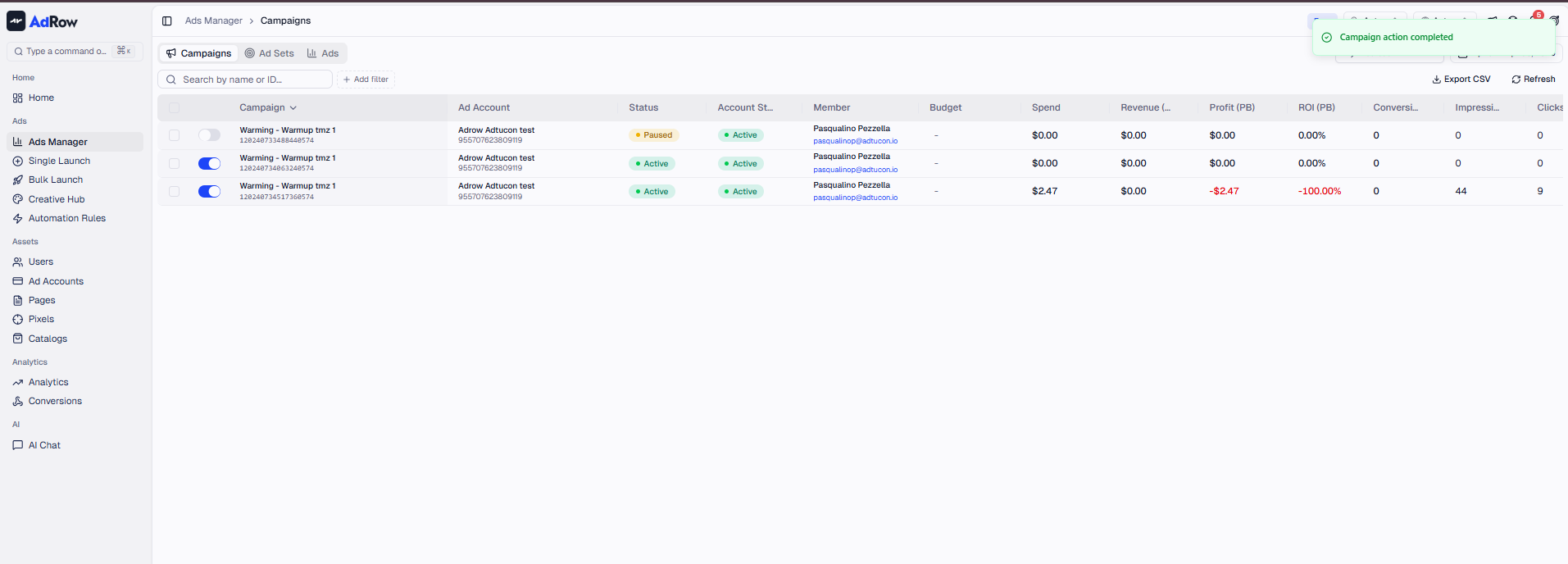
Note: Only entities with status ACTIVE or PAUSED can be toggled. Entities in other states (In Review, Disapproved, etc.) cannot be toggled from Wevion.
Bulk Pause/Resume (Multiple Entities)
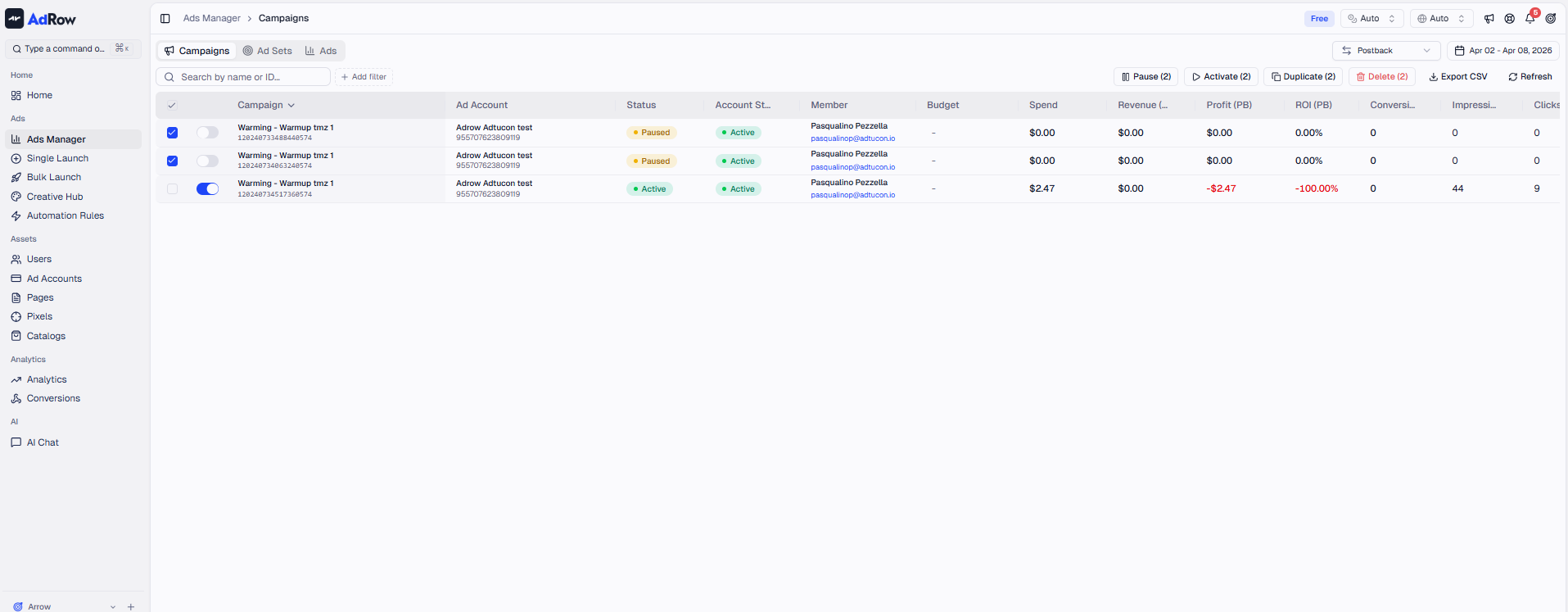
Select multiple rows using the checkboxes on the left
Click the Pause or Resume button in the bulk actions toolbar
All selected entities are toggled simultaneously
Progress is tracked per-entity — failures on one don't affect others
Wevion processes bulk toggles with a concurrency limit of 5 parallel requests to avoid overwhelming the Meta API.
Editing Campaign Budget
Find the campaign in the Ads Manager
Click the Daily Budget cell — it becomes editable
Enter the new budget amount
Press Enter or click away to save
The change is sent to Meta via background processing
Note: This edits the campaign-level budget (CBO). The minimum budget is €1.00.
Editing Ad Set Budget
Drill down to the Ad Sets level
Click the Daily Budget cell on the ad set you want to edit
Enter the new budget amount
Press Enter to save
Editing Ad Set Bid Amount
At the Ad Sets level, find the ad set with a Bid Cap or Cost Cap strategy
Click the Bid Amount cell
Enter the new bid amount
Press Enter to save
Archiving (Deleting) Entities
Select the entities you want to archive
Click the Delete (archive) button in the bulk actions toolbar
Confirm the action
The entities are archived on Meta and their status changes to
ARCHIVED
Important: Archiving is the Meta equivalent of "deleting." Archived entities stop delivering and can't be reactivated. This action is irreversible from Wevion.
Options and Configuration
What Each Action Does on Meta
ActionWhat Happens on MetaReversible? | ||
Pause | Entity status set to PAUSED | Yes — Resume to reactivate |
Resume | Entity status set to ACTIVE | Yes — Pause again anytime |
Edit Budget | Campaign/ad set daily_budget updated | Yes — Edit again to change |
Edit Bid | Ad set bid_amount updated | Yes — Edit again to change |
Archive | Entity archived (soft-deleted) | No — Cannot be unarchived from Wevion |
Actions Available per Level
LevelToggleEdit BudgetEdit BidArchive | ||||
Campaigns | ✅ | ✅ (CBO only) | — | ✅ |
Ad Sets | ✅ | ✅ | ✅ | ✅ |
Ads | ✅ | — | — | ✅ |
Inherited Pauses
When you pause a campaign, all its ad sets and ads stop delivering. Their status will show as CAMPAIGN_PAUSED (for ad sets and ads) or ADSET_PAUSED (for ads under a paused ad set). This is an inherited state — when you resume the campaign, they'll return to their previous status.
Optimistic Updates and Rollback
Wevion uses optimistic UI updates for a responsive experience:
You toggle a campaign → UI shows it as Paused immediately
Background job sends the request to Meta
If successful: Nothing changes — the UI already shows the correct state
If failed: The UI reverts to the original state, and you see an error notification
This means you can make multiple changes rapidly without waiting for each one to complete.
Frequently Asked Questions
Q: Can I pause multiple campaigns from different ad accounts at once? A: Yes. Bulk actions work across ad accounts. Wevion groups the requests by account and processes them in parallel.
Q: I paused a campaign but it's still spending. Why? A: There's a brief delay (usually seconds) between the pause command and Meta stopping delivery. Any impressions served during this window will still incur charges. This is normal Meta behavior.
Q: Can I edit budgets in bulk? A: Currently, budget editing is done one entity at a time by clicking the budget cell. For bulk budget changes, you would edit each one individually.
Q: What happens if I edit a budget and the Meta API rejects it? A: The UI will revert to the original budget, and you'll see an error notification explaining why. Common reasons: budget below minimum, account billing issues, or permission problems.
Q: Can I undo an archive? A: No. Archiving (deleting) is irreversible from Wevion. If you need to reactivate an archived entity, you would need to do so from Meta Ads Manager directly, or create a new one using the Duplicate feature. [See: ART-217]
Q: Why can't I toggle a campaign with status "Disapproved"? A: Only ACTIVE and PAUSED entities can be toggled. Entities with statuses like Disapproved, In Review, or With Issues need to be addressed at the Meta level first.