Filtering and Sorting Campaign Data
Last updated: April 18, 2026
Wevion's Ads Manager provides powerful filtering and sorting capabilities that let you quickly find and analyze the campaigns, ad sets, or ads you're interested in — even when managing hundreds of active campaigns across multiple ad accounts.
Prerequisites
Access to the Ads Manager Ads Manager Overview — Your Campaign Control Center
Campaign data available for the selected date range
How It Works
The Ads Manager supports three ways to narrow down your data:
Search — Free-text search by name or ID
Column Filters — Dropdown filters on specific columns
Sorting — Click any column header to sort ascending or descending
All filters work across your entire dataset (not just the visible page), and the summary totals update to reflect only the filtered results.
Step-by-Step Guide
Free-Text Search
Click the Search field in the toolbar
Type at least 2 characters
Results filter in real-time
What you can search by:
LevelSearchable Fields | |
Campaigns | Campaign name, Campaign ID |
Ad Sets | Ad set name, Ad set ID |
Ads | Ad name, Ad ID |
Tip: If you know the Meta ID of a campaign (e.g., 23851234567890), paste it directly into the search field for instant lookup.
Column Filters
Each column in the Ads Manager can have a filter. Click the filter icon on a column header to open the filter options.
Available filter types:
OperatorHow It WorksExample | ||
Equals | Exact match | Status = ACTIVE |
Contains | Partial text match | Name contains "summer" |
In | Match any in a list | Country in [IT, ES, FR] |
Between | Numeric range | Spend between 100 and 500 |
Greater than | Above a value | ROAS > 2.0 |
Less than | Below a value | CPA < 10 |
Greater or equal | At or above | CTR >= 1.5 |
Less or equal | At or below | Frequency <= 3 |
Filterable columns per level:
Campaign level:
Campaign Name, Campaign Status, Account Name, Account Status, Objective, Bid Strategy, Team Member, Team Name
Ad Set level:
Ad Set Name, Ad Set Status, Campaign Status, Campaign Name, Account Name, Account Status, Bid Strategy, Team Member, Team Name
Ad level:
Ad Name, Ad Status, Ad Set Status, Campaign Status, Campaign Name, Ad Set Name, Account Name, Account Status, Team Member, Team Name
Filter Dropdowns
For categorical columns (Status, Objective, Account Name, etc.), the filter provides a dropdown with all available values. These dropdown options are dynamically generated from your actual data, so you'll only see values that exist in your campaigns.
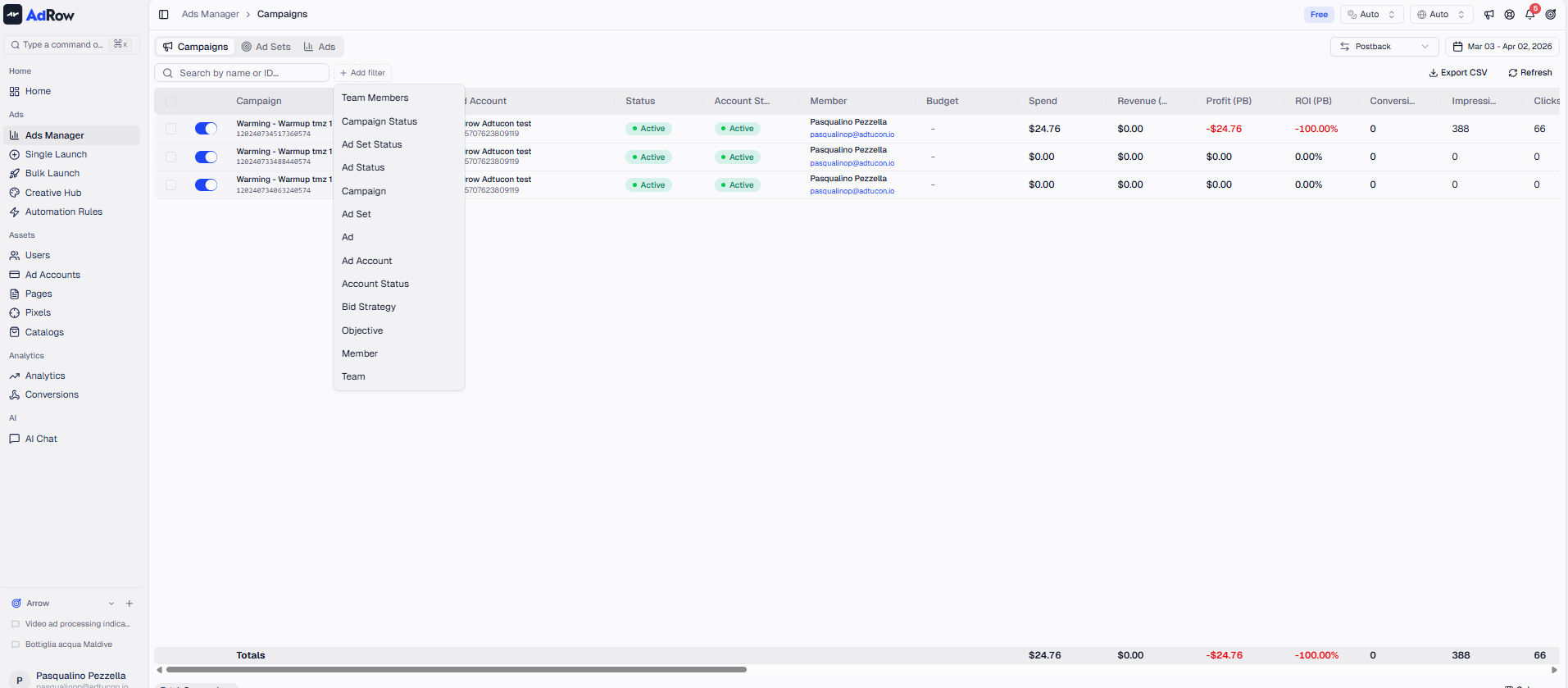
Status Filter Grouping
Wevion groups related statuses for convenience:
Selecting PAUSED also matches
CAMPAIGN_PAUSEDandADSET_PAUSED(entities paused because their parent is paused)Selecting ARCHIVED also matches
DELETEDandPERMANENTLY_DELETED
This means filtering for "PAUSED" shows you everything that's not currently delivering due to a pause — whether paused directly or inherited from a parent level.
Sorting
Click any column header to sort:
First click: Sort ascending (A-Z, lowest to highest)
Second click: Sort descending (Z-A, highest to lowest)
The sort indicator arrow shows the current sort direction.
Most popular sort fields:
Spend (descending) — See your highest-spending campaigns first
ROAS (descending) — Find your most profitable campaigns
CPA (ascending) — Find your most cost-efficient campaigns
Status — Group active vs paused campaigns
Note: Sorting by postback metrics (PB Conversions, PB Revenue, PB Profit, PB ROI) is supported but may take slightly longer since these metrics require additional processing.
Combining Filters
You can apply multiple filters simultaneously. For example:
Status = ACTIVE AND Account = "Main Account" AND Spend > 50
All active filters are visible in the toolbar, and you can remove individual filters by clicking the X next to each one.
Options and Configuration
Toolbar Filters
In addition to column filters, the toolbar provides quick-access filters:
FilterDescription | |
Account | Filter to a specific ad account |
Team Member | Filter to a specific team member (owner/admin only) |
Team Owner | Filter to a specific team owner (super admin only) |
Date Range | Change the time period [See: ART-219] |
Persisted Preferences
Your filter and sort preferences are maintained during your session. When you navigate between levels (Campaigns > Ad Sets > Ads), filters that don't apply to the new level are automatically removed.
Frequently Asked Questions
Q: Can I save filter presets? A: Not currently. Your filters are maintained during your session but reset when you leave the Ads Manager.
Q: Why can't I see the Team Member filter? A: The Team Member and Team Name columns are only visible to workspace owners, admins, and super admins. Regular media buyers only see their own data.
Q: Why is sorting by ROAS slow? A: Sorting by most metrics is fast (done in the database). Sorting by postback-derived metrics (PB Revenue, PB ROI, etc.) requires loading and enriching all data first, which can take a moment for large datasets.
Q: How do I filter for campaigns with zero spend? A: Use the Spend column filter with "Less or equal" = 0. This will show campaigns that received no spend in the selected date range.
Q: Can I filter by date range within the table? A: The date range is set globally via the toolbar date picker, not per-column. All metrics in the table are aggregated for the selected date range. [See: ART-219]