Notification Center — Staying Informed
Last updated: April 18, 2026
The Notification Center keeps you updated on important events across your Wevion workspace — from campaign approvals to billing alerts. This article explains how notifications work and how to use them effectively.
Prerequisites
An active Wevion account
Logged in to the platform
How It Works
Wevion generates notifications for key events and delivers them through up to three channels:
In-app notifications — Available in the Notification Center within the platform
Email — Sent to your registered email address for critical events
Telegram — Real-time alerts if you've connected your Telegram account
The Notification Center is your central hub for all in-app notifications. It supports filtering, searching, and bulk actions to help you stay on top of what matters.
Notification Types
TypeDescriptionDefault Severity | ||
Account Status | Meta ad account status changes (disabled, restricted, etc.) | Critical |
Spend Cap | Approaching or exceeding your plan's spend cap | Warning |
Campaign Approved | A campaign was approved by Meta | Info |
Campaign Disapproved | A campaign was rejected by Meta | Warning |
Delivery Error | An ad set or campaign has a delivery error | Warning |
Sync Completed | Data sync from Meta completed successfully | Info |
Sync Failed | Data sync from Meta encountered an error | Warning |
Report Ready | A scheduled or requested report is ready to download | Info |
Launch Completed | A bulk campaign launch finished processing | Info |
Token Expiring | A Meta access token is about to expire | Warning |
New User | A new team member joined the workspace | Info |
Payment Issue | A billing or payment problem occurred | Critical |
Severity Levels
Critical — Requires immediate attention (account disabled, payment failed)
Warning — Important but not urgent (campaign disapproved, token expiring)
Info — Informational updates (sync completed, report ready)
Step-by-Step Guide
Accessing the Notification Center
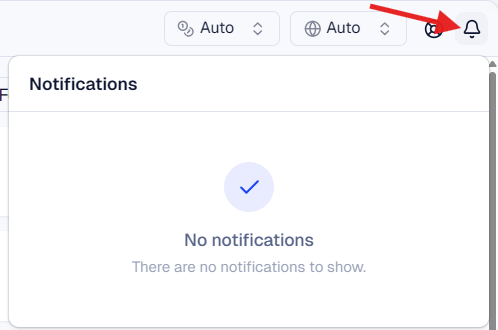
Click the bell icon in the top navigation bar
A dropdown shows your most recent notifications
The bell icon displays a badge with the count of unread notifications
Click View all notifications to open the full Notification Center page
Browsing Notifications
In the full Notification Center page:
Navigate to Notifications in the left sidebar
You'll see a list of all notifications, newest first
Each notification shows:
Title — brief description of the event
Message — detailed information
Severity — badge indicating Critical, Warning, or Info
Type — category of the notification
Date — when the notification was created (relative time: "5m ago", "2h ago", etc.)
Read/New — indicator showing if you've already viewed it
Filtering Notifications
Use the filter controls at the top of the notification list:
Type filter — Select a specific notification type (e.g., "Campaign Disapproved")
Severity filter — Filter by Critical, Warning, or Info
Read status — Show All, Unread only, or Read only
Search — Search by title or message content
Managing Notifications
Mark a single notification as read:
Click on the notification to expand it
It's automatically marked as read
Or click the Mark as read button
Mark all notifications as read:
Click the Mark all as read button at the top of the list
All current notifications will be marked as read
The unread count badge will reset to zero
Delete a notification:
Click the delete icon next to the notification
Confirm the deletion
Deleted notifications are permanently removed
Understanding Notification Polling
The notification system uses polling to check for new notifications:
When the notification panel is open: checks every 10 seconds
When browsing other pages: checks every 30 seconds
The unread count badge updates automatically in real-time
Options and Configuration
SettingDescription | |
Notification filters | Type, severity, and read status |
Search | Full-text search across title and message |
Cursor pagination | Infinite scroll with "Load more" |
Polling interval | 10s (active) / 30s (background) |
FAQ
Can I turn off specific notification types? In-app notifications cannot be individually disabled — they always appear in the Notification Center. However, you can customize which notifications are sent via Telegram and email. See Customizing Notification Preferences.
How long are notifications kept? Notifications are stored indefinitely unless you manually delete them.
Do notifications sync across devices? Yes. Your notification state (read/unread) is stored on the server and syncs across all devices and browser sessions.
Can my owner see my notifications? No. Notifications are personal — each user sees only their own notifications. Owners and team members have separate notification streams.
Why am I not seeing notifications? If you're not receiving in-app notifications, check:
Your browser is not blocking notifications
You're logged in with the correct account
The events you expect are actually occurring (e.g., if no campaigns are running, you won't get campaign notifications)