Launching Your First Campaign — Step by Step
Last updated: April 18, 2026
This guide walks you through creating and publishing your first Meta ad campaign using Wevion's Campaign Launcher.
Prerequisites
A connected Meta account with an active token Understanding Token Health and Reconnection
At least one assigned ad account Assigning Ad Accounts to Team Members
A fan page linked to your ad account
Your ad creative ready (image or video + ad copy)
A landing page URL (for most campaign objectives)
How It Works
The Campaign Launcher follows a linear flow: you configure the campaign (objective, budget), then the ad set (targeting, placements), then the ad (creative, copy, CTA). When you publish, Wevion validates everything, queues it for background processing, creates everything on Meta via the API, and tracks progress in real-time. If anything fails, a full rollback cleans up partial resources automatically. For the full architecture overview, see Campaign Launcher Overview — How It Works.
Step-by-Step Guide
Step 1: Open the Campaign Launcher
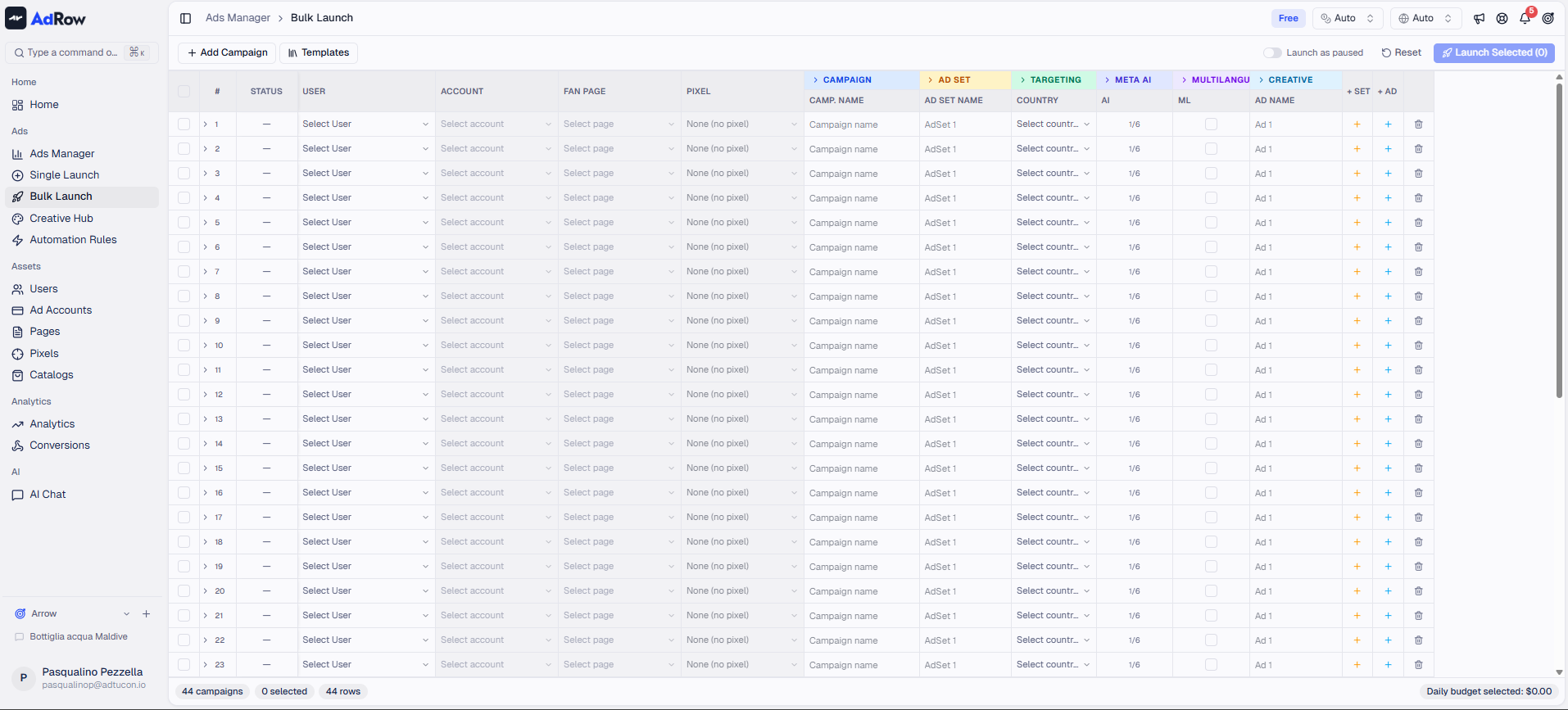
Navigate to Campaign Launcher from the main sidebar. You'll see the spreadsheet-style campaign builder.
Step 2: Select Your Meta Profile
At the top of the page, select the Meta Profile (token) you want to use for this launch. This determines which ad accounts, fan pages, and pixels are available to you.
Tip: If you have multiple Meta tokens, choose the one that has access to the ad account you want to advertise from. Understanding Token Health and Reconnection
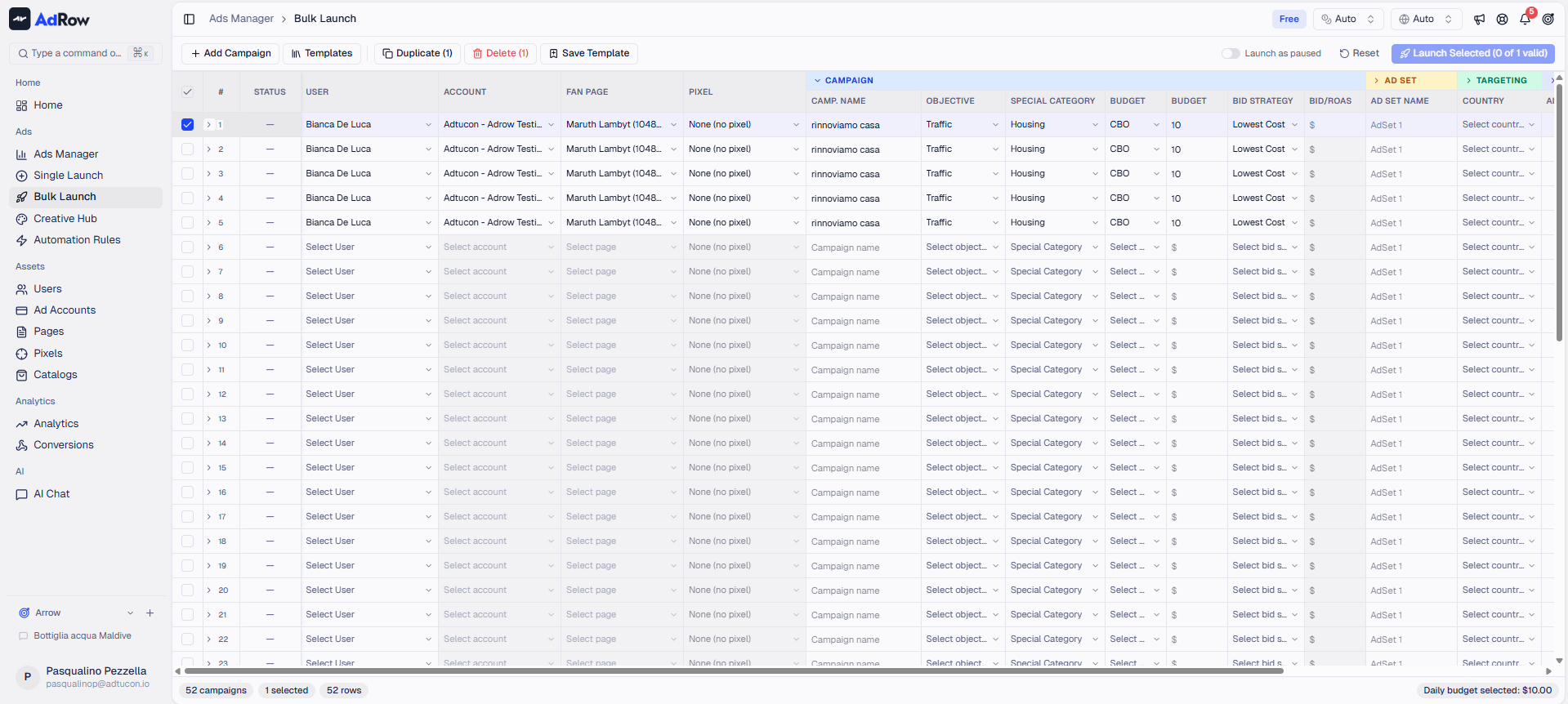
Step 3: Configure the Campaign
Fill in the campaign-level settings in the first row:
FieldWhat to Enter | |
Campaign Name | A descriptive name (e.g., "Summer Sale - IT - Traffic") |
Objective | Choose your goal: Sales, Leads, Traffic, Awareness, Engagement, or App Promotion [See: ART-203] |
Ad Account | Select the ad account to run the campaign from |
Budget Level | Choose CBO (Campaign Budget Optimization) or ABO (Ad Set Budget) [See: ART-204] |
Daily Budget | If using CBO, set the total daily budget (minimum €1.00) |
Bid Strategy | Lowest Cost (default), Bid Cap, Cost Cap, or Minimum ROAS [See: ART-204] |
Special Ad Category | Select if your ad is about financial products, employment, housing, or political/social issues [See: ART-209] |
Step 4: Configure the Ad Set
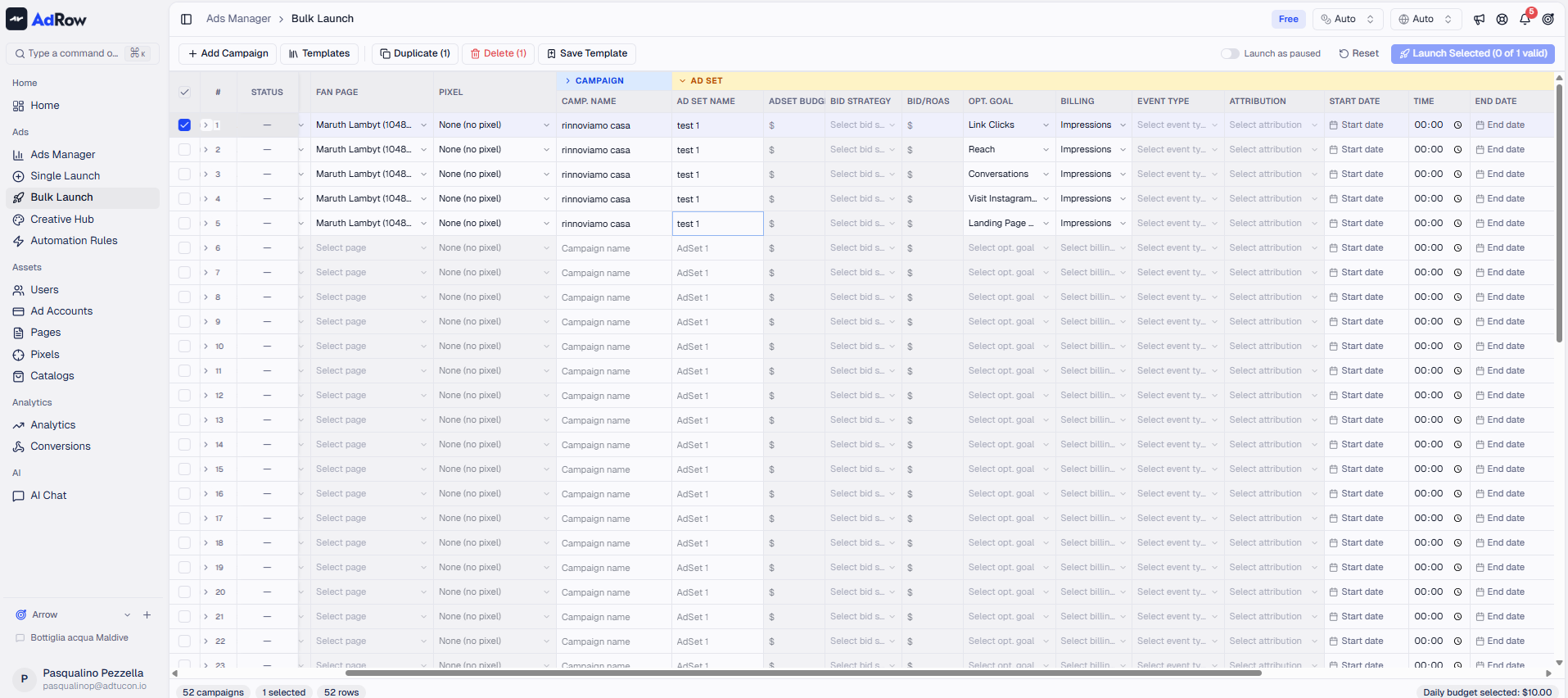
The ad set row defines your targeting. Fill in these fields:
FieldWhat to Enter | |
Ad Set Name | A descriptive name (e.g., "IT-18-65-M/F-AllPlacements") |
Countries | Select one or more target countries |
Age Range | Minimum and maximum age (13-65) |
Gender | All, Male, or Female |
Placements | All Placements (recommended), Facebook + Instagram, Facebook Only, Instagram Only, or Facebook + Instagram + Messenger |
Optimization Goal | What to optimize for — depends on your objective (e.g., Landing Page Views for Traffic) |
Pixel | Required for conversion-based objectives (Sales, Leads, Traffic) |
Fan Page | The Facebook page to publish ads from |
If using ABO, you'll also set:
Daily Budget per ad set (minimum €1.00)
Bid Strategy and Bid Amount per ad set
For EU targeting, you must fill in DSA compliance fields:
DSA Beneficiary — Who benefits from the ad
DSA Payor — Who pays for the ad
Step 5: Add Your Ad Creative
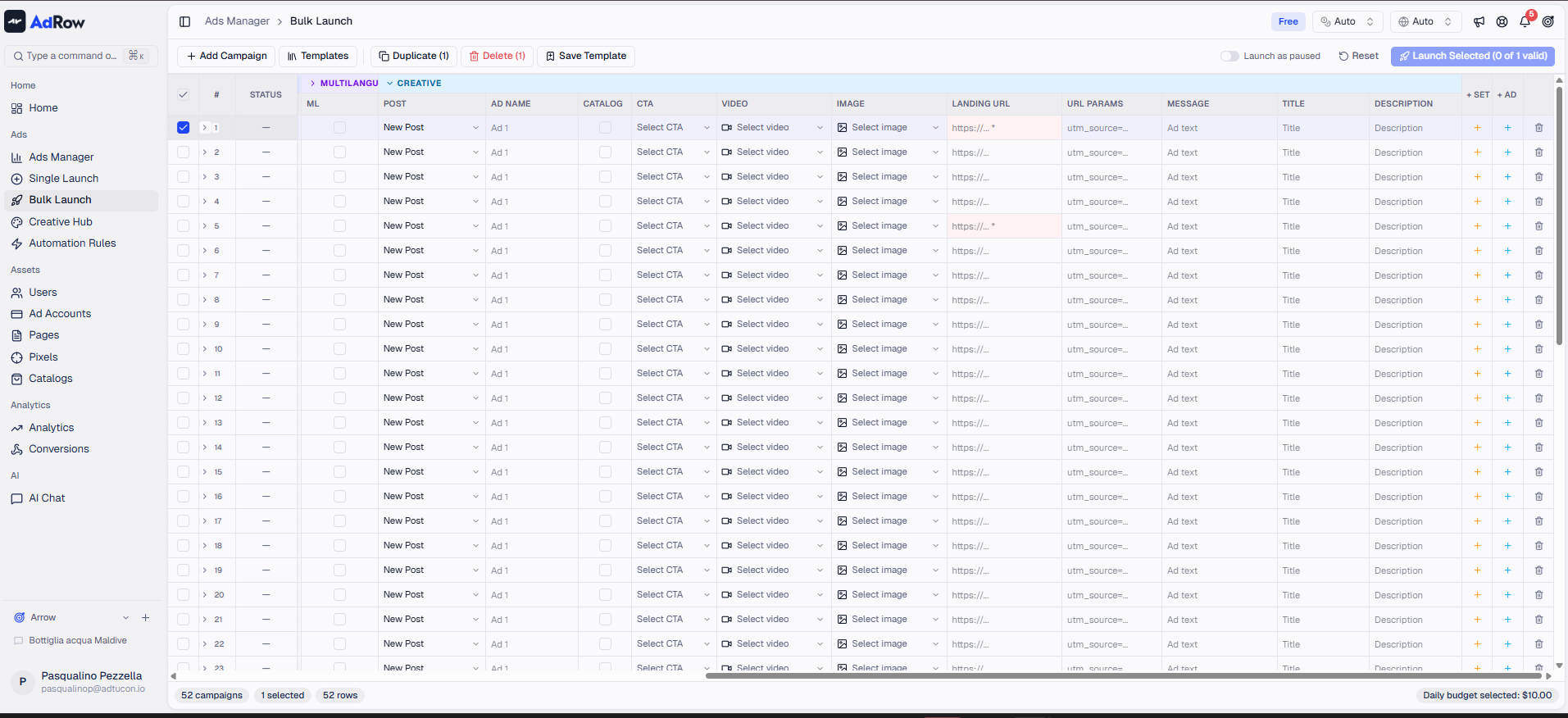
Each ad sits inside an ad set. Configure your ad:
FieldWhat to Enter | |
Ad Name | A descriptive name (e.g., "Video-30s-CTA-ShopNow") |
Image or Video | Upload your creative or use a URL. Supported formats: JPEG, PNG, GIF, WebP (images); MP4 (video) |
Primary Text | The main ad copy that appears above the creative |
Headline | Short headline below the creative |
Description | Optional description text below the headline |
Call to Action | Button text: Learn More, Shop Now, Sign Up, Download, Contact Us, Subscribe, Book Now, Apply Now, Order Now, Get Offer, and more |
Landing Page URL | Where users go when they click. Required for conversion goals |
Alternative: Use an Existing Post Instead of creating a new ad, you can select an existing published post from your fan page. This preserves all engagement (likes, comments, shares). Toggle the Use Existing Post option and enter the Post ID.
Step 6: Add More Ad Sets or Ads (Optional)
Add another ad set: Click the "+" button at the ad set level to create a new audience variant within the same campaign.
Add another ad: Click the "+" button at the ad level to add more creatives to the same ad set. This lets you A/B test different creatives.
Tip: You can copy and paste cells just like in a spreadsheet. Select a row, copy it, and paste to quickly duplicate configurations.
Step 7: Review and Validate
Before publishing, Wevion runs a comprehensive validation check. Common things it checks:
All required fields are filled
Budget is at least €1.00
Pixel is selected (for conversion objectives)
Optimization goal matches your objective
DSA fields are filled for EU countries
At least one creative (image or video) per ad
Landing page URL is present for conversion goals
Custom event type is set (for conversion optimization)
If any issues are found, you'll see red error indicators on the affected cells with a description of the problem.
Step 8: Publish
Click the Publish button. You'll see:
A confirmation dialog showing what will be created
A progress tracker that updates in real-time:
✅ Campaign created
✅ Ad Set 1 created
✅ Media uploaded
✅ Ad 1 created
... and so on for each element
Step 9: Verify in Ads Manager
Once publishing completes successfully:
You'll receive an in-app notification confirming the launch
Navigate to Ads Manager to see your new campaign [See: ART-211]
The campaign status will initially show as In Review while Meta reviews your ad
Note: Meta typically reviews ads within a few hours, but it can take up to 24 hours in some cases.
Options and Configuration
Advantage+ (Meta AI) Options
Enable Meta's AI-powered optimizations for better performance:
OptionWhat It Does | |
Advantage Audience | Lets Meta expand your targeting beyond your selected audience |
Advantage Creative | Enables automatic creative enhancements (brightness, contrast, etc.) |
Dynamic Creative | Meta tests different combinations of your creative elements |
Multi Advertiser | Allows your ad to appear alongside related ads for higher engagement |
Attribution Window
Choose how Meta attributes conversions to your ads:
WindowDescription | |
7-day click, 1-day view | Default. Counts conversions within 7 days of a click or 1 day of a view |
7-day click | Only counts click-through conversions within 7 days |
1-day click, 1-day view | Short attribution window |
1-day click | Most conservative — only immediate click conversions |
Scheduling
Start Date/Time — When the ad set starts delivering (optional; defaults to immediately)
End Date/Time — When the ad set stops delivering (optional; runs indefinitely if not set)
Frequently Asked Questions
Q: My campaign published but I can't see it in Ads Manager. A: Campaigns need a few seconds to sync. Wait 30 seconds and refresh the Ads Manager page. If it still doesn't appear, trigger a manual sync from the Ads Manager toolbar.
Q: One of my ads failed during publish. What happened to the rest? A: If any step fails, Wevion performs a rollback — it deletes all partially created resources (campaign, ad sets, ads) to keep your account clean. You won't have orphaned entities. Fix the error and try again.
Q: Can I save my configuration without publishing? A: Yes! Use Campaign Templates to save your entire configuration and reuse it later. Campaign Templates — Save and Reuse Configurations
Q: What's the minimum budget? A: The minimum daily budget in Wevion is €1.00 (or equivalent in your account currency). This applies per campaign (CBO) or per ad set (ABO).
Q: How long does publishing take? A: A single campaign with one ad set and one ad typically publishes in 10-30 seconds. Video uploads take longer (up to 10 minutes for processing). Bulk launches with many campaigns can take several minutes.