Inviting and Managing Team Members
Last updated: April 18, 2026
Learn how to invite media buyers to your team, monitor their performance, and manage their access in Wevion.
Prerequisites
An Wevion account with Owner role
An active subscription with available user slots (check your plan limits)
The email address of the person you want to invite
How It Works
As an Owner, you can invite media buyers to join your workspace. Each team member gets their own isolated workspace where they can:
Connect their own Meta accounts
Create and manage campaigns
View their own performance data
You, as the owner, can see all team members' data aggregated in your dashboard, drill down into individual member performance, and impersonate members to see the platform from their perspective.
Team member limits are set by your plan:
PlanIncluded Members | |
Starter | 2 (including you) |
Professional | 5 (including you) |
Enterprise | 15 (including you) |
Need more? You can purchase extra user slots at €99/month each (see Adding Extra Team Member Slots).
Step-by-Step Guide
Inviting a New Team Member
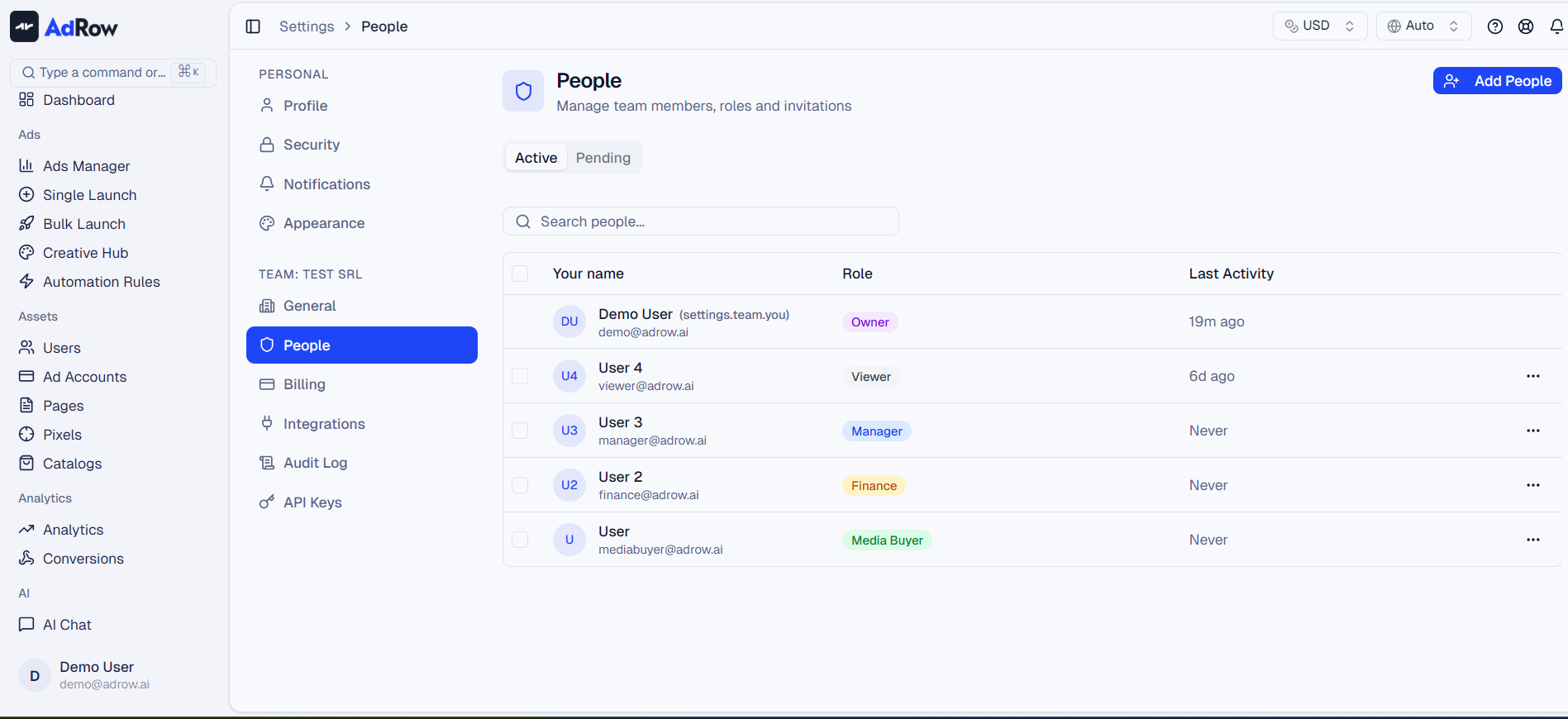
Navigate to Teams in the left sidebar
Click the Invite Member button
Enter the team member's email address
The member will receive an invitation email with a link to create their account
Once they sign up, they'll appear in your team list as a Media Buyer
Viewing Team Member Performance
Navigate to Teams in the left sidebar
The team list shows each member with performance stats:
Total Spend — how much ad spend they've managed in the selected period
Active Campaigns — number of currently active campaigns
ROI — return on investment percentage
Conversions — total postback conversions
Revenue — total revenue generated
Profit — revenue minus spend
Use the date range and currency filters at the top to adjust the view
Members are sorted by spend (highest first) by default
Impersonating a Team Member
To see the platform from a specific team member's perspective:
Navigate to Teams
Click on the team member you want to impersonate
Click Impersonate
The platform will switch to that member's view
A notification banner indicates you're in impersonation mode
Click Exit Impersonation to return to your own view
Deactivating a Team Member
When a team member leaves your organization or no longer needs access:
Navigate to Teams
Find the team member you want to deactivate
Click the action menu (three dots) or deactivation button
Confirm the deactivation
What happens on deactivation:
The member can no longer log in
Their data (spend, campaigns, conversions) is preserved and remains visible in your reports
Their connected Meta accounts remain in the system
This action is reversible — you can reactivate the member later
Reactivating a Team Member
Navigate to Teams
Find the deactivated member (they'll be marked as inactive)
Click the reactivation option
The member can log in again and resume their work
Options and Configuration
OptionDescription | |
Date range filter | Filter team performance stats by date period |
Currency filter | View spend/revenue in a specific currency or "Account" (original currency) |
Timezone filter | Adjust data to a specific timezone or use ad account timezone |
FAQ
How many team members can I have? It depends on your plan: Starter includes 2, Professional includes 5, Enterprise includes 15. You can purchase extra slots at €99/month each.
What role does a new team member get? New team members are assigned the Media Buyer role. This gives them access to their own campaigns and data, but not to team management or billing.
Can I invite someone as an Owner? No. Each workspace has one Owner. The Owner is the person who created the workspace and holds the subscription. To transfer ownership, see Transferring Workspace Ownership.
Can a team member see other team members? No. Media Buyers can only see their own data. They cannot see other team members or their campaigns.
What happens to a member's data if I remove them? Their data is never deleted. All historical spend, campaigns, and conversions remain in your reports. The member simply loses login access.
Do team members need to connect their own Meta accounts? Yes. Each media buyer connects their own Meta accounts through the OAuth flow. The owner can see which ad accounts are connected to each member.
Can I assign specific ad accounts to team members? Ad accounts are linked to the Meta user that connected them. If a media buyer connects a Meta user with access to specific ad accounts, those accounts are associated with that member's workspace.