Syncing Your Meta Assets — How It Works
Last updated: April 18, 2026
Wevion keeps your Meta assets (ad accounts, fan pages, pixels, and catalogs) in sync with your Meta Business Manager. This article explains how the sync process works and what happens behind the scenes.
Prerequisites
A connected Meta account Connecting Your Meta (Facebook) Account
At least one Meta Business Manager with assets
How It Works
When you connect your Meta account to Wevion, the platform automatically discovers and syncs all your Meta assets. This sync process runs:
On first connection — All assets are discovered and imported
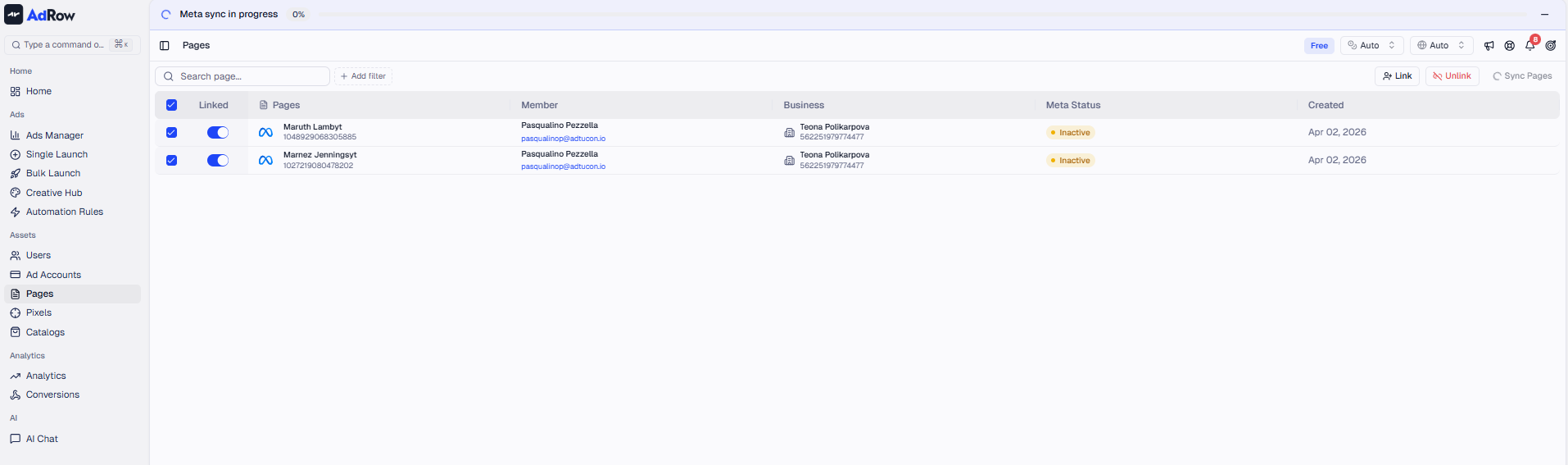
On demand — When you click the Sync button on any asset page
Periodically — Background jobs keep your data fresh
The sync process is non-destructive — it adds new assets and updates existing ones but never deletes assets that still exist on Meta.
What Gets Synced
Ad Accounts
Wevion discovers ad accounts from three sources:
SourceDescription | |
Owned Accounts | Ad accounts directly owned by your Business Manager |
Client Accounts | Ad accounts shared with your Business Manager by other businesses |
Employee Assigned | Ad accounts assigned to you as a business employee |
For each ad account, Wevion stores:
Account ID and name
Currency and timezone
Ownership type (owned vs client)
Available tokens for API access
Fan Pages
Same three-source discovery:
Owned pages from your Business Manager
Client pages shared with your BM
Employee-assigned pages
Pixels
Pixels are discovered at two levels:
Business Manager level — Owned and client pixels
Ad Account level — Pixels connected to each of your ad accounts (catches shared pixels from other BMs)
This two-level approach ensures no pixels are missed, even those shared across businesses.
Catalogs
Catalogs are discovered from:
Owned product catalogs
Client product catalogs
Assigned catalogs (for system users with catalog management permissions)
The Sync Process — Step by Step
1. Trigger
You click Sync on any asset page (Ad Accounts, Fan Pages, Pixels, Catalogs), or the system triggers an automatic sync.
2. Background Processing
The sync job is dispatched to a background queue. This means:
You can continue using Wevion while the sync runs
The sync processes all your Business Managers and tokens in parallel
A notification tells you when the sync is complete
3. Discovery
For each of your Meta tokens and Business Managers, Wevion calls Meta's API to fetch all available assets. It paginates through results to ensure nothing is missed.
4. Upsert
For each discovered asset:
New assets are created in Wevion's database
Existing assets are updated with the latest information (name, currency, timezone)
Token access is merged — if multiple tokens can access the same asset, all are recorded
5. Cleanup
After a fully successful sync (all tokens and BMs processed without errors), assets that no longer exist on Meta are cleaned up. If any part of the sync failed, cleanup is skipped to prevent data loss.
6. Notification
An in-app notification confirms the sync result: how many assets were found, updated, or added.
Resilience and Error Handling
The sync system is designed to handle failures gracefully:
FeatureHow It Works | |
Retry with backoff | If a Meta API call fails, it retries up to 3 times with increasing delays |
Circuit breaker | If too many consecutive calls fail (5+), the system pauses requests for 60 seconds before trying again |
Token rotation | If one token fails, Wevion tries the next available token |
Partial success | A failure syncing one Business Manager doesn't block others from syncing |
Safe cleanup | Asset cleanup only runs when ALL sync tasks succeed |
Step-by-Step: Manually Triggering a Sync
Navigate to any Assets page (Ad Accounts, Fan Pages, Pixels, or Catalogs)
Click the Sync button in the toolbar
A loading indicator appears while the sync runs
When complete, the table refreshes with the latest data
Any new assets appear in the list
Frequently Asked Questions
Q: How long does a sync take? A: For most accounts, sync completes in 10-30 seconds. Large Business Managers with hundreds of assets may take up to a minute.
Q: Why don't I see an ad account I have access to in Meta? A: Possible reasons:
The token you connected doesn't have access to that Business Manager
Your role in the BM may not grant access to that specific account
Try reconnecting your Meta account to refresh token permissions
If using an Employee role, you can only see accounts explicitly assigned to you
Q: Does syncing affect my running campaigns? A: No. Syncing only reads data from Meta — it never modifies campaigns, budgets, or any active entities.
Q: What if I disconnect an ad account from my BM in Meta? A: On the next sync, the account will be cleaned up from Wevion (only if the sync completes without errors). Historical data for that account is preserved.
Q: Can I sync just one specific asset? A: The sync processes all assets of that type at once. You can't sync a single ad account — the entire ad account sync runs, which is fast and ensures consistency.
Q: What's the difference between "syncing" and "assigning"? A: Syncing discovers which assets exist in your Meta BMs and imports them into Wevion. Assigning grants Wevion's tokens permission to manage specific assets (like ad accounts). After syncing, you still need to assign (connect) assets before they can be used for campaign management. [See: ART-222]