Troubleshooting Creative Hub Issues
Last updated: April 18, 2026
Creative Hub is your centralized media library in Wevion, backed by Google Drive and equipped with AI generation tools. This article covers the most common problems and how to resolve them quickly.
If you are not yet familiar with Creative Hub, start with the overview first. Creative Hub Overview — Your Media Library
Prerequisites
An active Wevion account with access to Creative Hub from the main sidebar.
Familiarity with basic Creative Hub operations (upload, folders, AI generation). Creative Hub Overview — Your Media Library
File Upload Issues
Upload Fails or Stalls
If your upload stops progressing or fails, check these common causes:
File size. Each file must be under 500 MB. Compress large files before uploading — use HandBrake for videos or export images at a lower resolution.
Batch size. You can upload a maximum of 10 files at a time. If you selected more, reduce the batch and try again.
Keep the browser tab open. Uploads run in your browser session. Closing the tab or navigating away while an upload is in progress will lose the incomplete files.
Internet connection. A slow or unstable connection causes uploads to stall, especially for large videos. Try a wired connection, or disconnect your VPN temporarily.
Browser issues. Clear your browser cache, disable interfering extensions (ad blockers, privacy tools), or switch to a different supported browser (Chrome, Firefox, Edge, Safari).
If uploads still fail after checking all of the above, contact support with the file name and size. Contacting Support
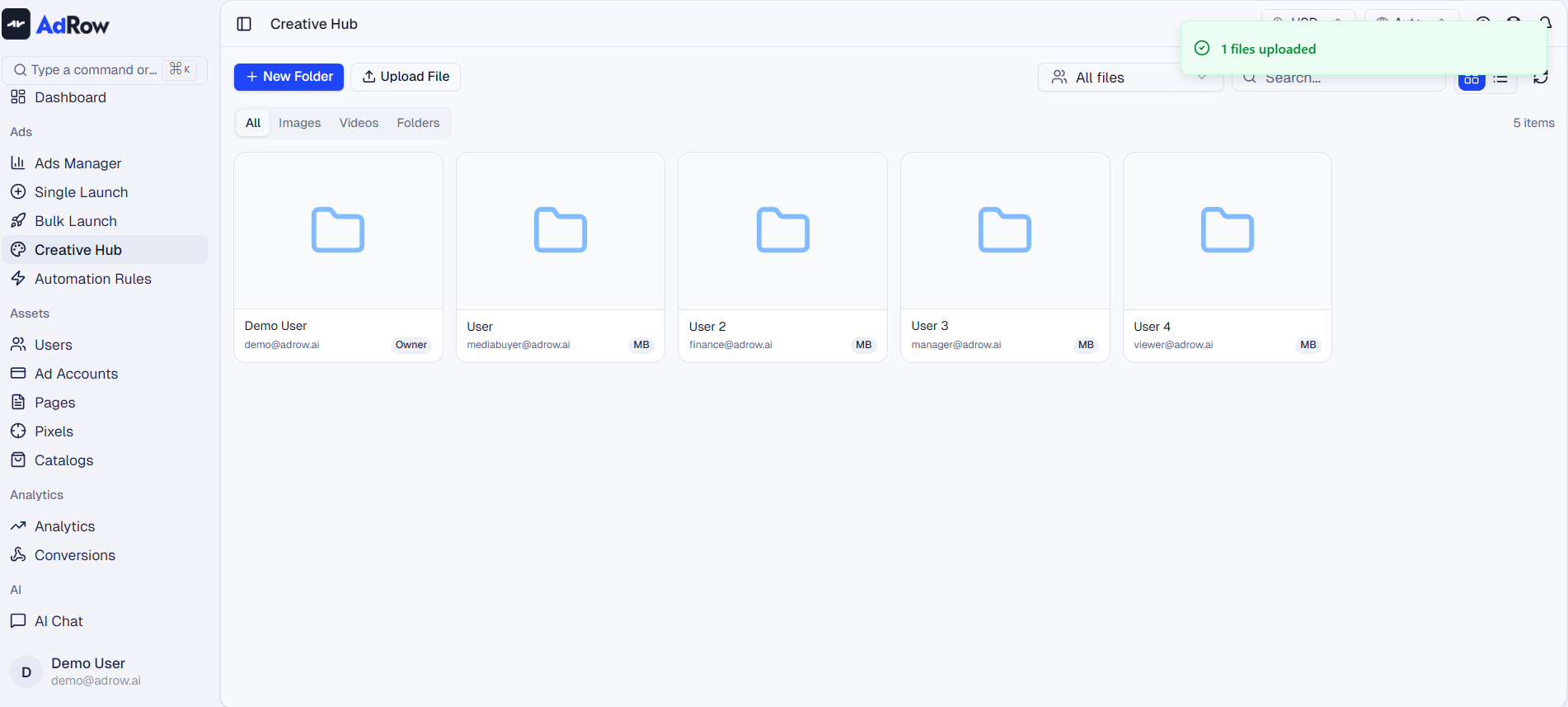
File Does Not Appear After Upload
Refresh the page. A simple browser refresh (F5 or Cmd+R) usually resolves this.
Check the folder location. Files land in the folder you were viewing during upload. If you were in a subfolder, the file is there, not in the root. Use the breadcrumb navigation to verify your location.
Wait for video thumbnails. Video files may take a few extra seconds for their thumbnail to generate. The file is already stored — the preview follows shortly.
Unsupported File Type
Wevion supports these formats:
CategoryFormats | |
Images | JPG, PNG, WebP, GIF |
Videos | MP4, MOV, AVI, WebM |
Documents | PDF, PSD, AI |
Convert unsupported formats before uploading. For video, MP4 with H.264 encoding is the most reliable choice. Uploading Files — Images, Videos, and Documents
File Management Issues
Cannot Delete, Rename, or Move Files
Check your role. File management requires at least the Media Buyer role. Viewers and Finance users have read-only access.
Your files vs. team files. Media Buyers can only manage their own folder. Editing files in another member's folder requires the Owner or Super Admin role.
Selection state. For bulk operations, make sure you have selected files using the checkboxes. The action toolbar only appears when items are selected.
If you have the correct role and the issue persists, refresh the page and try again.
Thumbnails Not Loading
Wait for generation. Thumbnails for newly uploaded files, especially videos, may take up to 30 seconds to generate.
Refresh the page. This forces the browser to request the latest thumbnail URLs.
Check your connection. Thumbnails load from Google Drive — a slow or blocked connection to Google services prevents them from rendering.
If thumbnails remain broken, the file itself is still intact. Click the file to open the full preview and verify the content.
Search Not Finding Files
The search bar matches file names only — not contents, tags, or metadata.
Check spelling. The search is literal. A typo will miss the file.
Use partial names. Entering
summerwill matchsummer_sale_hero.jpgand any file containing "summer."Check the current folder. Search filters within the folder you are browsing. Navigate to the root of Creative Hub to search your entire library.
Use type filters. Combine the search bar with the type filter (All, Images, Videos, Folders) to narrow results.
Organizing Files — Folders, Rename, Move
AI Generation Issues
Generation Stuck in "Processing"
AI generation takes time. Before troubleshooting, check typical wait times:
Generation TypeTypical Wait Time | |
AI Images | 30 seconds to 2 minutes |
AI Videos | 1 to 5 minutes |
AI Avatars (UGC-style) | 3 to 10 minutes |
Text-to-Speech | Under 1 minute |
Composite video rendering typically takes 30 seconds to 2 minutes, depending on the number of elements and video duration.
If generation is taking longer than expected:
Do not close the tab. The generation runs server-side, but closing the tab may prevent you from receiving the result.
Check the AI Jobs panel. View all your active and completed jobs there. If a job shows an error, retry it directly. Managing AI Jobs — Status and Download
Peak traffic. During high-usage periods, generation may queue longer than usual.
If a job remains stuck for more than 15 minutes, it likely encountered a server-side issue. Submit the request again.
Generation Failed
Check your credits balance. If your credits have reached zero, new generations will fail. Check your balance in account settings. Understanding AI Credits
Try again. Temporary server issues cause occasional failures. Resubmitting the same request usually works.
Simplify your prompt. Remove overly complex descriptions or break a complex request into smaller steps. Prompts that violate content policies will be rejected.
Check the input file. If using a reference image, verify it is a supported format (JPG, PNG, WebP) and not corrupted by opening the preview.
AI Generation Overview — What You Can Create
Credit Balance Not Updating
Refresh the page. The displayed balance may be cached. A full page refresh pulls the latest value.
Generation still in progress. Credits are deducted upon completion, not when the job is submitted. Check the AI Jobs panel for status.
If the balance appears incorrect after refreshing, contact support with details of the generation.
Generated File Not in Folder
Check the original folder. Files are saved to the folder you were viewing when you started the generation. Navigate back to that location.
Check the root folder. If unsure, start from the Creative Hub root and look for the most recently added file.
Use the AI Jobs panel. Completed jobs include the file location and a download link — the fastest way to find a generated file. Managing AI Jobs — Status and Download
Refresh the page. New files may not appear immediately in the list.
Sharing Issues
External Collaborator Cannot Access Shared Folder
Verify the email address. Double-check for typos (e.g.,
.coninstead of.com). The invitation goes to the exact address you entered.Must be a Google account. The recipient needs a Gmail or Google Workspace account associated with the shared email. Non-Google addresses will not work because Creative Hub files are stored on Google Drive.
Check spam folder. Ask the recipient to look there for the sharing notification.
Re-share if needed. Remove the incorrect entry and send a fresh invitation with the correct email.
Cannot Share Folder
Check your role. Sharing requires at least the Media Buyer role. Viewers and Finance users cannot share.
You can only share your own folder. Sharing another team member's folder requires the Owner or Super Admin role.
General Issues
Creative Hub Loading Slowly
Clear browser cache. Use a hard refresh (Ctrl+Shift+R on Windows, Cmd+Shift+R on Mac) to force-load fresh data.
Check your internet connection. Thumbnails and file data load from Google Drive — a slow connection impacts rendering speed.
Reduce files per folder. Folders with hundreds of files may load slowly. Organize into subfolders to keep each view manageable.
Disable browser extensions. Ad blockers and privacy tools can interfere. Test in an incognito/private window to rule this out.
FAQ
Q: Is there a way to see all errors in one place? A: The AI Jobs panel shows the status and error messages for all your generation requests. For file-related issues, check the browser developer console (F12) for network errors and include them when contacting support.
Q: Will I lose my files if something goes wrong? A: No. Creative Hub files are stored on Google Drive. Even if the Wevion interface has a temporary issue, your files remain safe in Google's infrastructure.
Q: Can I recover a deleted file? A: Wevion does not offer an undo for deleted files. However, since files are stored on Google Drive, you may be able to recover recently deleted items from Google Drive's Trash (within 30 days).
Q: Why do I see "Google Drive not connected" errors? A: This means the connection between Wevion and your Google Drive folder needs to be re-established. Go to Settings > Google Drive and verify your configuration. Google Drive Settings and Configuration
When to Contact Support
If the steps above do not resolve your issue, contact Wevion support. Include the following for the fastest response:
What you were trying to do (upload, generate, share, etc.)
What happened (error message, stalled progress, missing file)
Steps to reproduce the problem
Screenshots of the error
Your browser name and version
File name and size (for upload or generation issues)
Reach support through the in-app chat (bottom-right corner) or email support@wevion.ai.